Whole Home Audio System: Room-by-Room Setup Guide 2026
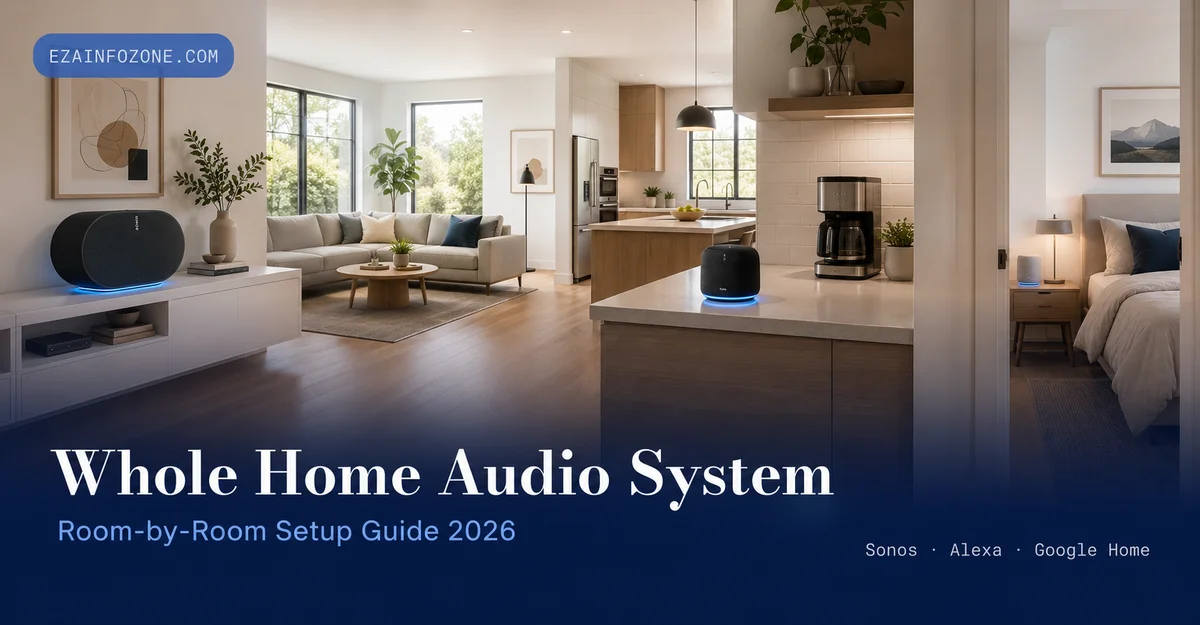
Whole Home Audio System: Room-by-Room Setup Guide + Platform Comparison
Everything you need to fill every room with synchronized, crystal-clear sound — from choosing the right platform to placing each speaker for perfect coverage in your home.
A whole home audio system uses multiple wireless smart speakers connected to your Wi-Fi and controlled through a single app. You can play the same music in every room at once, or set different audio in each zone. The best platforms for 2026 are Sonos (best sound quality), Amazon Alexa (best value), Google Home (best for Android users), and Apple HomeKit (best for iPhone households). Entry-level setups start at $22 per room; a complete 4-room multi room audio system costs $100–$1,000 depending on the platform you choose.
What Is a Whole Home Audio System?
A whole home audio system lets you play music, podcasts, or any audio from a streaming service across multiple rooms simultaneously — all controlled from a single smartphone app or a voice command. Instead of one standalone speaker in one room, you place wireless smart speakers throughout your home, each connected to your Wi-Fi network.
Once connected, you can group all speakers to play the same song in perfect synchronization everywhere, or assign independent playlists to each zone: music in the kitchen, a podcast in the bedroom, white noise in the nursery, all from one app. This is the core idea behind a multi room audio system — one network, many speakers, zero cables between rooms.
The four major platforms — Amazon Alexa, Google Home, Sonos, and Apple HomeKit — each have their own ecosystem of speakers and apps. The most important decision you will make is choosing one platform and staying within it, because cross-brand audio synchronization remains unreliable in 2026. A wireless whole home audio setup from a single ecosystem delivers the most consistent, lag-free listening experience.
Platform Comparison: Alexa vs Google Home vs Sonos vs Apple HomeKit
Choosing your platform is the most critical step in building a whole home audio system. Each ecosystem has different strengths in sound quality, voice assistant capability, app experience, and price. Here is a side-by-side comparison of all four major platforms for 2026:
| Feature | Amazon Alexa | Google Home | Sonos | Apple HomeKit |
|---|---|---|---|---|
| Entry Price | $22 (Echo Pop) | $30 (Nest Mini) | $149 (Era 100) | $299 (HomePod mini) |
| Sound Quality | Good | Good | Excellent | Excellent |
| Multi-Room Sync | Good | Good | Best-in-class | Good (AirPlay 2) |
| Voice Assistant | Alexa (top-rated) | Google Assistant | Alexa or Google built-in | Siri only |
| Streaming Services | 90+ services | All major services | All major services | Apple Music + AirPlay |
| Cross-Platform | Echo devices only | Nest devices only | AirPlay 2 + Alexa + Google | AirPlay 2 devices |
| Best For | Budget-first buyers | Android / Google users | Audio quality priority | iPhone-only households |
Recommendation: If budget is the priority, start with Amazon Alexa (Echo devices) — you can build a 4-room whole home audio system for under $200. If audio quality matters most, Sonos is the best wireless whole home audio platform available in 2026 and the most flexible long-term investment. Explore our full smart home entertainment guide for more platform details.
Room-by-Room Speaker Placement Guide
Where you place each speaker directly affects audio quality, voice recognition accuracy, and how evenly sound fills the space. The following placement guide covers the six most common rooms in a whole home audio system setup:
Living Room
Place a larger speaker or stereo pair centrally on a media unit or bookshelf at ear height when seated. Position 3–5 feet from the main listening area. For TV integration, add a soundbar with multi-room support.
Kitchen
Place on the countertop at least 12 inches from the sink and away from the stove. Position near the prep area for easy voice commands while cooking. Avoid corner placement, which muddies bass frequencies.
Bedroom
A nightstand speaker at bedside level is ideal for alarm features and sleep timers. Choose a speaker with a physical mute button for privacy. Angle the speaker slightly outward rather than directly at the pillow.
Bathroom
Use only moisture-resistant or waterproof speakers. A shelf above the sink or a window ledge works well. Keep at least 3 feet from the shower head. The Sonos Move 2 (IP56 rated) is the best waterproof option in the Sonos ecosystem.
Home Office
Place on the desk or bookshelf at ear level. A compact speaker with clear midrange is better than bass-heavy models for voice call use. Use the microphone mute button when on video calls to prevent audio feedback.
Patio / Outdoor
Only use outdoor-rated speakers. Standard Echo, Nest, and HomePod models are indoor only. Sonos Move 2 and Sonos Roam 2 are the only Sonos speakers with official outdoor ratings. Position away from direct rain exposure.
Setting Up Your Whole Home Audio System (Step-by-Step)
Setting up a whole home audio system takes 15–30 minutes for most households. The core process is the same across Alexa, Google Home, and Sonos — download the app, connect each speaker to Wi-Fi, assign rooms, and create a group:
Download the App & Create an Account
Download your platform’s app: Amazon Alexa, Google Home, Sonos, or Home (Apple). Create a free account if you do not have one. All ongoing setup and control happens through this app — there is no separate hub or controller required.
Power On & Connect Each Speaker to Wi-Fi
Plug in your first speaker and wait for the setup indicator (a light ring or chime). Open the app and follow the on-screen pairing steps. Enter your Wi-Fi password when prompted. Repeat for each speaker in each room. Use the 2.4 GHz band for better range, or 5 GHz only if the speaker is within close range of the router.
Assign Each Speaker to a Room
In the app, label each speaker with its room name (Kitchen, Living Room, Bedroom). This enables precise voice commands such as “Alexa, play jazz in the kitchen” or “Hey Google, stop the bedroom speaker.” Without room assignments, you can only control all speakers as one unit.
Create a Whole-Home Speaker Group
In the app, create a group containing all your speakers — name it “Everywhere,” “Whole House,” or any name you like. Playing music to this group sends synchronized audio to every room. You can add or remove individual rooms from the group at any time, turning a whole home audio system into a multi zone audio system instantly.
Link Your Streaming Service
Connect your preferred streaming service (Spotify, Apple Music, Amazon Music, YouTube Music) in the app settings. Set a default music service so voice commands like “play my morning playlist” automatically pull from the right source. Sonos, Alexa, and Google Home all support multiple services simultaneously.
Test Sync & Balance Volume Per Room
Play a song to your whole-home group and walk through each room. Confirm audio is synchronized with no echo between rooms, and that volume levels are balanced. Set the bedroom 20–30% lower than the living room as a default starting point. Use our free smart home planning tools to map your layout before buying additional speakers.
Budget Tiers: Entry, Mid-Range & Premium Whole Home Audio
A whole home audio system does not need to be expensive. Below are realistic budget options for a 3–4 room wireless whole home audio setup in 2026, with specific product recommendations at each price point:
Budget Setup
Best for renters or first-time buyers who want whole-home audio without committing to a premium system. Sound quality is solid for background music, podcasts, and voice commands.
Best Value
The sweet spot for most homeowners. Mid-range speakers deliver noticeably better audio fidelity and more reliable multi-room synchronization. The Sonos Era 100 is the standout option at this tier.
Audiophile Grade
For listeners who want hi-fi sound in a wireless whole home audio setup. Dolby Atmos spatial audio, lossless streaming support, and best-in-class multi-room synchronization across every room.
Voice Control & Volume Tips for Your Whole Home Audio System
Voice commands are the fastest way to control a whole home audio system once it is set up. Here are the most useful commands across Alexa and Google Home, plus tips for getting volume levels right in every room:
| Action | Alexa Command | Google Home Command |
|---|---|---|
| Play music everywhere | “Alexa, play [song] everywhere” | “Hey Google, play [song] on all speakers” |
| Stop one room only | “Alexa, stop in the kitchen” | “Hey Google, stop kitchen speaker” |
| Set a room’s volume | “Alexa, set kitchen volume to 4” | “Hey Google, set kitchen to 40%” |
| Different songs per room | “Alexa, play jazz in the bedroom” | “Hey Google, play classical in bedroom” |
| Set a sleep timer | “Alexa, stop music in 30 minutes” | “Hey Google, stop music in 30 minutes” |
Volume balancing tip: Set your living room speaker as your reference volume (typically 50–60%). Set kitchen speakers 10% higher to compensate for background cooking noise. Set bedroom speakers 20–30% lower by default. Save these as preset volume scenes using Alexa Routines or Google Home Automations for one-tap activation.
Troubleshooting Common Whole Home Audio Issues
Even a well-configured whole home audio system can develop issues over time. Here are the three most common problems and exactly how to fix them:
Wi-Fi Dropouts
Symptom: Speaker goes offline randomly or music stops mid-song. Most common in rooms far from the router.
Cause: Weak Wi-Fi signal reaching the speaker.
Audio Sync Issues Between Rooms
Symptom: You hear a slight echo when walking between rooms — audio is delayed in one room versus another.
Cause: Outdated firmware on one or more speakers, or a congested Wi-Fi channel.
Voice Assistant Not Responding
Symptom: Speaker does not react to wake word, or responds with a connectivity error message.
Cause: Muted microphone, lost Wi-Fi connection, or account authentication issue.
For additional setup help and planning resources, visit our Smart Home Entertainment hub or read our dedicated whole home audio smart speaker setup guide.
Frequently Asked Questions — Whole Home Audio System
Plan Your Whole Home Audio System
Use our free smart home tools to map your rooms, calculate speaker coverage, and design the perfect multi room audio setup for your home — no signup required.
Explore Free Tools