Brat YouTube Thumbnail: Size & How to Make One
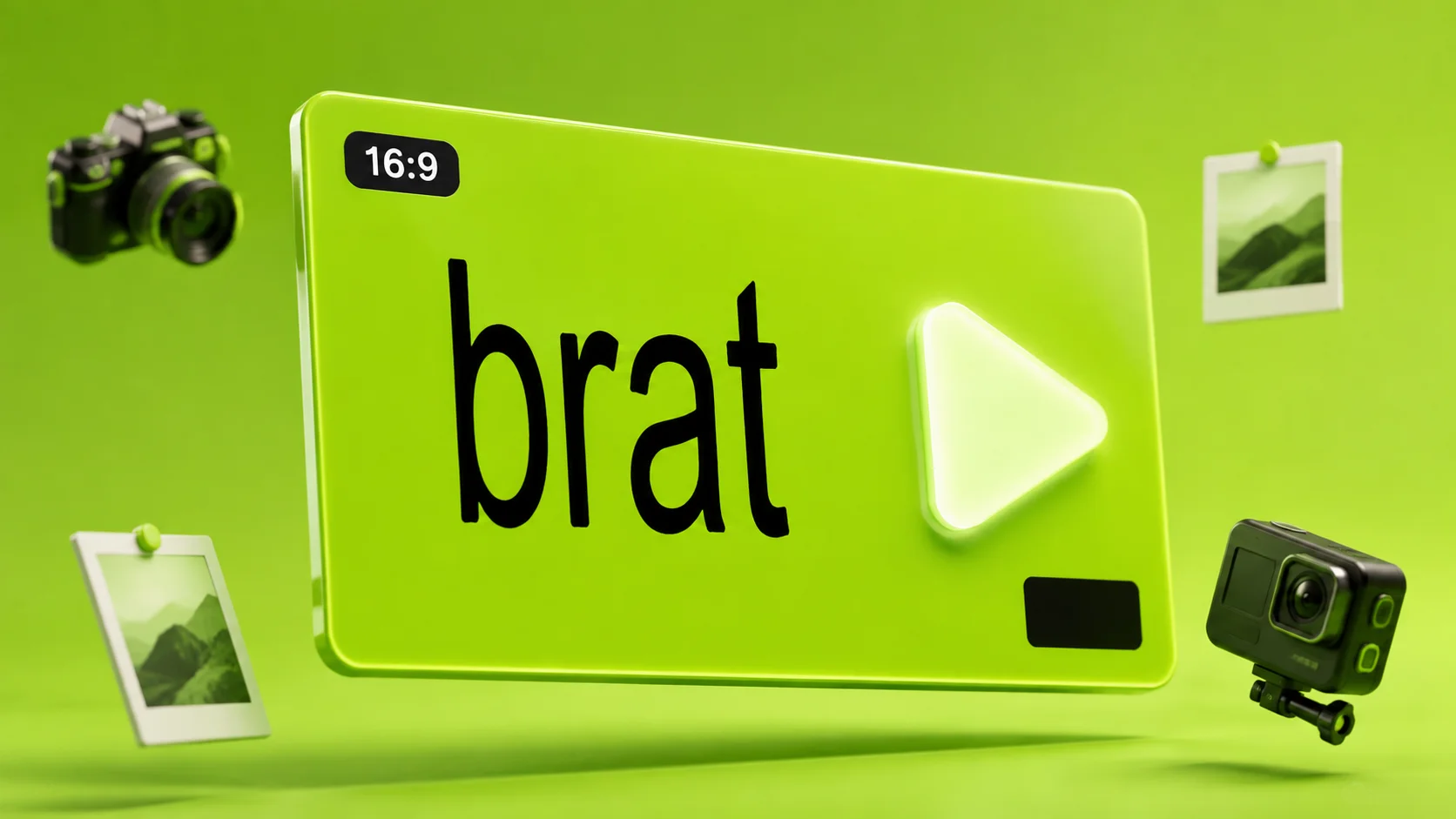
How to make a brat-style YouTube thumbnail that meets YouTube’s current upload rules and still reads clearly at the tiny size thumbnails are viewed at.
To make a brat-style YouTube thumbnail, open the brat generator, choose the 1280×720 YouTube preset or use a custom 3840×2160 canvas, keep the text short and high-contrast, leave important content away from the bottom-right overlay area, and export as JPG or PNG within YouTube’s current file-size limit.
YouTube Thumbnail Requirements, Not Guesswork
Before picking a size, it’s worth knowing what YouTube itself actually asks for, since a lot of “best size” advice online is outdated. Per YouTube’s own current help documentation, a custom thumbnail for a standard video:
- Uses a 16:9 aspect ratio.
- Is recommended at 3840×2160 pixels – YouTube’s current recommendation, not a strict requirement – with a minimum width of 640 pixels still accepted.
- Is uploaded in an image format such as JPG or PNG – that’s the exact wording YouTube’s current English help page uses.
- Stays under the file size limit for your upload device – 2MB on mobile, up to 50MB on desktop.
| Requirement | Standard video thumbnail |
|---|---|
| Recommended resolution | 3840×2160 pixels |
| Minimum width | 640 pixels |
| Recommended aspect ratio | 16:9 |
| Formats YouTube’s help page lists | Such as JPG or PNG |
| Mobile file-size limit | 2MB |
| Desktop file-size limit | 50MB |
Source: YouTube’s own custom-thumbnail help page (linked below). These are current recommendations, not permanent specifications – YouTube can change them.
One requirement that trips people up and has nothing to do with image settings: your account must be verified to upload a custom thumbnail. Feature availability may also be affected by channel restrictions, daily upload limits, channel history or policy violations. Verification does not guarantee permanent access to custom thumbnails – if the upload option isn’t showing up in YouTube Studio, check the Feature eligibility section of your channel settings rather than assuming the image file itself is the problem.
Platform recommendations can change, so confirm the latest specifications on YouTube’s official custom-thumbnail help page before finalizing a design for an important upload.
The Tool’s Built-In Preset vs. YouTube’s Current Recommendation
The brat generator has a built-in “YouTube Thumbnail (1280×720)” size preset. The built-in 1280×720 preset uses the recommended 16:9 aspect ratio and exceeds the stated 640-pixel minimum width. It remains a practical export option, while 3840×2160 matches YouTube’s current recommended resolution for standard video thumbnails.
In practice, the visual difference is small for a flat-color, bold-text brat design specifically, since there’s no fine photographic detail to lose at the lower resolution – the built-in preset is a reasonable choice if you want the fastest path to a finished thumbnail. If you’d rather match YouTube’s current recommendation, choose “Custom size…” from the export menu and enter 3840×2160 instead – both dimensions are comfortably under this tool’s 6000px custom size cap.
Standard Videos vs. Shorts
This guide focuses on standard 16:9 YouTube video thumbnails. For Shorts, YouTube’s current recommendation is a 2160×3840 image with a 9:16 aspect ratio and a minimum height of 640 pixels – a different shape from the 16:9 thumbnail this guide covers. Custom Shorts thumbnail upload availability may also depend on the current YouTube Studio workflow. Check YouTube’s current Shorts guidance before reusing a standard 16:9 design for a Short, since it won’t necessarily look or crop the same way on every Shorts placement.
Designing a Brat Thumbnail That Reads at a Tiny Size
A thumbnail is judged at a much smaller size than it’s exported at – a few centimeters wide in a search results list or the suggested-videos sidebar, not full screen. The brat aesthetic’s core habits happen to suit this well:
- One or two words, not a sentence. The same logic covered in 100 brat words applies here even more – a short word stays legible at thumbnail size where a long phrase turns into a blur.
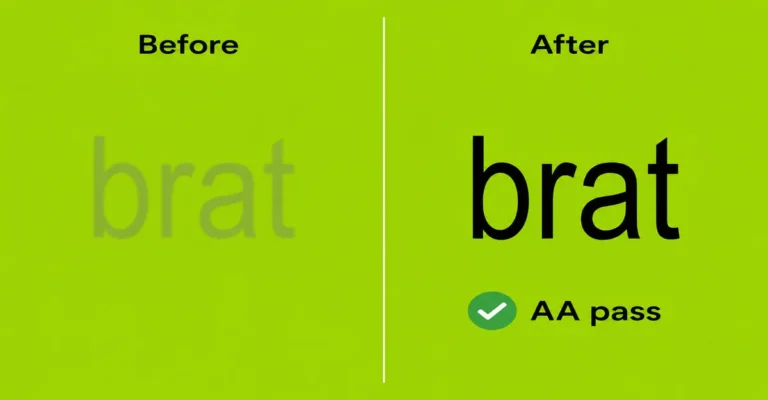
- High contrast between text and background. The classic brat green with black text clears accessibility contrast checks and reads clearly even shrunk down – see the brat color code guide for the exact values and contrast notes.
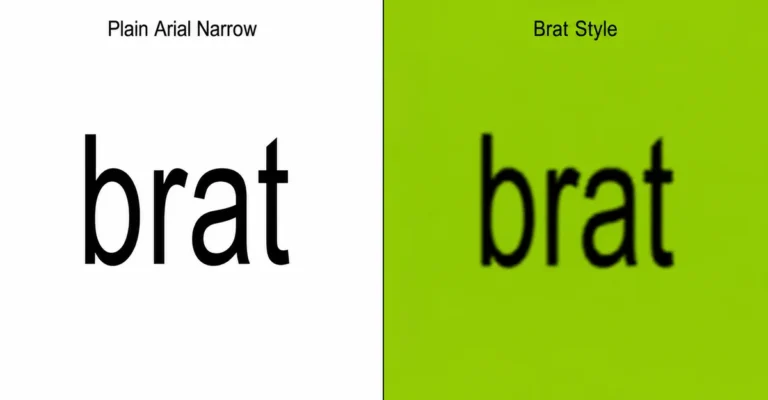
- Weight is a trade-off, not a fixed rule. The original brat-style cover uses a lighter, regular-looking weight. For a YouTube thumbnail viewed at a small size, a slightly heavier weight can improve legibility, although it will look less faithful to the original artwork. Test both and choose the lightest weight that still stays readable at thumbnail size.
Preview your export at a genuinely small size – shrink the image window down on your own screen, or check it in YouTube Studio’s own preview – rather than judging it only at full resolution, since a design that looks great large can still fail at the size it’s actually seen at. If you’re also cutting a short version of the same video for TikTok or Reels, the same small-size legibility rule applies to captions and text overlays on that format too.
Leaving Room for the Duration Badge and Other Overlays
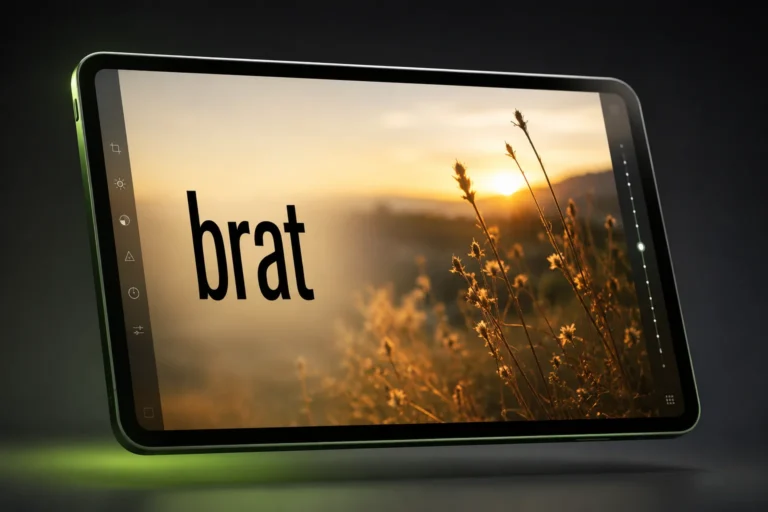
YouTube commonly displays the video duration near the bottom-right of standard video thumbnails. Other interface controls or overlays may also appear depending on the device and YouTube surface. Text or a design element placed in that corner can end up partly covered once the video is live, even though it looks fine in your export before uploading.
The safest layout keeps the main word centered or placed away from the bottom-right corner specifically, with a small margin from all edges more generally – the same margin habit that matters for a printed poster avoiding a trim edge applies here for a different reason: an on-screen overlay rather than a physical cut. Preview the exported thumbnail on both mobile and desktop before uploading, since overlay placement and thumbnail cropping can differ slightly by device and surface. If your thumbnail uses a photo background rather than a flat color, the same margin logic applies to whatever’s behind the text too – see the brat text on a photo guide for how that feature works.
How to Reduce the Thumbnail File Size
If your export is close to or over YouTube’s mobile 2MB limit, a few practical steps usually get it under the limit without shrinking the canvas:
- Use JPG for a photographic background when a smaller file is the priority – JPG compresses photo-style detail more efficiently than PNG does.
- Use PNG for a flat-color design with sharp text edges, since PNG avoids the compression artifacts that can soften crisp lettering.
- Lower the JPG quality setting gradually rather than reducing the canvas dimensions first – dropping the resolution is usually a bigger quality loss than a slightly lower JPG quality setting.
- Recheck text clarity after compressing – a quality setting that looks fine on a photo can still soften small text enough to matter.
- Confirm the actual exported file size rather than assuming a format is automatically small enough – check the file’s real size before uploading, not just its extension.
Thumbnail Policy
Custom thumbnails must follow YouTube’s Community Guidelines and thumbnail policies. A technically correct image – the right size, format, and file size – can still be rejected or cause restrictions if its content violates platform rules.
Step-by-Step
- Open the brat generator and choose the YouTube Thumbnail preset (1280×720), or a custom 3840×2160 canvas for YouTube’s current recommended resolution.
- Type one or two words rather than a full sentence, keeping the thumbnail’s small viewing size in mind.
- Pick a high-contrast pairing – classic brat green with black text is a safe, tested default.
- Test both a regular and a slightly heavier weight, and keep whichever stays clearly readable once shrunk down for grid and search views.
- Position the text away from the bottom-right corner, where YouTube commonly shows the duration badge.
- Export as JPG or PNG, keeping the file under 2MB if you’re uploading from a phone – see the file-size section above if it’s too large.
- Upload it in YouTube Studio under your video’s thumbnail settings. Your account must be verified to upload a custom thumbnail; if the option is unavailable, check the Feature eligibility section in YouTube Studio.
Common Mistakes
Mistake: Assuming 1280×720 no longer works.
It still works and clears the platform’s minimum requirements – it’s the older, widely-supported baseline rather than YouTube’s current recommended resolution of 3840×2160.
Mistake: Placing the main text in the bottom-right corner.
YouTube commonly shows the duration badge there on standard video thumbnails. Keep important text centered or away from that specific corner, and preview on both mobile and desktop.
Mistake: Using a full sentence instead of one or two words.
A thumbnail is viewed small. A short word or two stays readable at that size; a longer phrase usually doesn’t.
Mistake: Assuming any account can upload a custom thumbnail.
Your account must be verified to upload a custom thumbnail. Feature availability may also be affected by channel restrictions, daily upload limits, channel history or policy violations. If the option isn’t available, check Feature eligibility in YouTube Studio before assuming the image itself is the problem.
Mistake: Reusing the same 16:9 thumbnail design for a Short without checking.
Shorts can use different recommended dimensions and may display differently across YouTube’s surfaces – check YouTube’s current Shorts guidance rather than assuming a standard-video thumbnail carries over directly.
FAQ
What size should a brat YouTube thumbnail be?
The tool’s built-in 1280×720 preset uses the recommended 16:9 aspect ratio and exceeds YouTube’s stated 640-pixel minimum width. YouTube’s current recommended resolution for standard video thumbnails is 3840×2160 – use a custom canvas at that size if you want to match it exactly.
Is 1280×720 still an acceptable thumbnail size?
Yes – it clears YouTube’s 640px minimum width and uses the correct 16:9 ratio. It’s the older, widely-supported baseline rather than YouTube’s current recommended resolution of 3840×2160.
What file formats does YouTube accept for thumbnails?
YouTube’s current English help page lists image formats such as JPG or PNG. For a normal static thumbnail, either works well; PNG tends to keep sharp text edges cleaner, and JPG tends to produce a smaller file for a photo-heavy design.
What’s the maximum file size for a YouTube thumbnail?
2MB if you’re uploading from a mobile device, or up to 50MB from a desktop, per YouTube’s current limits.
Why can’t I upload a custom thumbnail on YouTube?
Your account must be verified to upload a custom thumbnail. Feature availability may also be affected by channel restrictions, daily upload limits, channel history or policy violations. If the option is unavailable, check the Feature eligibility section in YouTube Studio.
Why does part of my thumbnail get covered once the video is live?
YouTube commonly displays the video duration near the bottom-right of standard video thumbnails, and other overlays may appear depending on the device and surface. Keep important text and design elements away from that corner and preview on both mobile and desktop.
Should I use a single word or a full sentence on a thumbnail?
A single word or short phrase, not a full sentence – thumbnails are viewed small, and a longer phrase tends to blur together at that size.
Does the tool’s custom size support YouTube’s recommended resolution?
Yes. The custom width and height fields accept up to 6000 pixels each, comfortably covering a 3840×2160 canvas.
Is a standard-video thumbnail design safe to reuse for a Short?
Not necessarily. Shorts can use different recommended dimensions and may display differently across YouTube’s surfaces – check YouTube’s current Shorts guidance before reusing a 16:9 design.
Can a technically correct thumbnail still get rejected?
Yes, if its content violates YouTube’s Community Guidelines or thumbnail policies. Getting the size, format, and file size right doesn’t override those content rules.
Is this free to use?
Yes, fully free, with no signup, no watermark, and no paywalled features.