Discord Text Formatting: The Complete Markdown Guide
Bold, italics, underline, strikethrough, headers, small text, spoilers, lists, links, code blocks, colored text and timestamps: every Discord formatting trick in one place, with the exact syntax to copy.
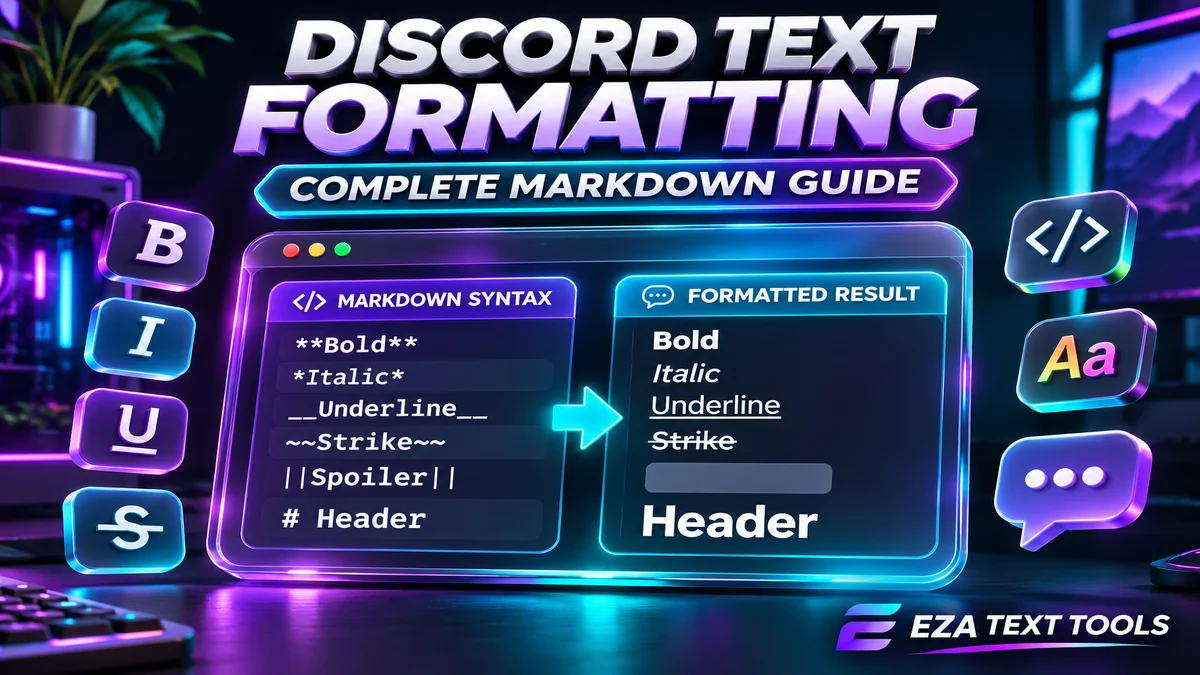
Quick answer: Discord text formatting uses Markdown, so you add symbols around your text. Type **text** for bold, *text* for italics, __text__ for underline, ~~text~~ for strikethrough and ||text|| for a spoiler. Start a line with # for a big header or -# for small text. Don’t forget the space after the symbol at the start of a line.
In this guide
- Discord formatting cheat sheet
- What is Discord markdown?
- Bold, italics, underline and strikethrough
- How to make text bigger or smaller
- Bullet points and numbered lists
- Hyperlinks (masked links)
- Code blocks and syntax highlighting
- Block quotes
- Spoiler tags
- Colored text
- Discord timestamps
- Example: a formatted announcement
- Discord message character limit
- Mentions and other special formats
- How to stop Discord formatting
- Formatting on mobile
- Tips, tricks and best practices
- Common mistakes
- FAQs
Plain messages get lost in a busy Discord server. A bold warning, a clear header, a tidy list or a hidden spoiler makes your message easier to read and harder to miss. The good news is that you don’t need a bot or a special app. Discord’s text formatting is built in, and it works by typing a few simple symbols.
This guide covers every formatting option Discord supports, from the basics like bold and italics to headers, small text, lists, masked links, code blocks, colored text and timestamps. Each section shows the exact syntax to type, what it looks like, and the rules that make it work. If you want fancy fonts for your name or bio instead, which Markdown can’t do, our Discord fonts generator handles that.
Discord Text Formatting Cheat Sheet
Here’s every common Discord text format in one table. Type the text in the middle column into a Discord message, and it shows up like the right column.
| Format | What to type | Result |
|---|---|---|
| Bold | **bold** | bold |
| Italics | *italics* or _italics_ | italics |
| Bold italics | ***bold italics*** | bold italics |
| Underline | __underline__ | underline |
| Underline italics | __*underline italics*__ | underline italics |
| Underline bold | __**underline bold**__ | underline bold |
| Strikethrough | ~~strikethrough~~ | |
| Spoiler | ||spoiler|| | Hidden until clicked |
| Big header | # Header | Large heading |
| Medium header | ## Header | Medium heading |
| Small header | ### Header | Small heading |
| Small text (subtext) | -# small text | Small grey text |
| Bullet list | - item or * item | • item |
| Numbered list | 1. item | 1. item |
| Masked link | [text](https://example.com) | Clickable text |
| Inline code | `code` | Grey code box |
| Code block | ```code``` | Multi-line code box |
| Block quote | > quote | Quote with a side bar |
| Multi-line quote | >>> quote | Everything after it is quoted |
| Timestamp | <t:1798221600:F> | Date and time in each reader’s time zone |
Remember the space: headers, subtext, lists and block quotes only work when the symbol is at the very start of a line and followed by a space, like # Hello, not #Hello.
What Is Discord Markdown?
Markdown is a simple plain-text formatting system. Instead of clicking a bold button, you wrap your words in symbols, and the app turns them into formatted text when you send the message. Discord supports a subset of Markdown and adds a few features of its own, like spoilers, subtext and timestamps. Some people call it Discord rich text or Discord markup, and many search for “Discord text commands”, but you don’t need any commands at all: you just type the symbols.
Markdown formatting works in places where you write messages:
- Server text channels and threads
- Direct messages and group DMs
- Forum and media channel posts
It doesn’t change usernames or display names, because those don’t support Markdown. To style a name or bio, you need Unicode fonts instead, which are special characters that look like a different font. That’s the difference between the two: Markdown formats a message, while Unicode fonts replace the letters themselves.
Discord Markdown vs Unicode Fonts
| Feature | Discord markdown | Unicode fonts |
|---|---|---|
| Works in messages | Yes | Yes |
| Works in names and bios | No | Yes |
| How it works | Symbols around your text | Copy and paste styled characters |
| Searchable | Yes | Usually not |
| Best for | Readable, structured messages | Decorative names, bios and titles |
How to Bold, Italicize, Underline and Strikethrough in Discord
These four styles are the basics of Discord text formatting. They can go anywhere in a message, even in the middle of a sentence.
How to Bold Text in Discord
Put two asterisks on each side of the text: **important** becomes important. Bold is the best way to highlight a key word, a deadline or a rule.
How to Italicize Text in Discord
Discord italics use one asterisk or one underscore on each side: *really* or _really_ becomes really. Italics are good for emphasis, titles of games or shows, and quick asides.
How to Underline Text in Discord
Use two underscores on each side: __note__ becomes note. Underline is a Discord addition, since standard Markdown doesn’t include it.
How to Strikethrough Text in Discord
Discord strikethrough uses two tildes on each side: ~~old price~~ becomes old price. Strikethrough is handy for crossed-out jokes, completed tasks or showing a correction.
On the desktop app you can also highlight words you already typed and pick the strikethrough button from the small pop-up toolbar. If the line doesn’t get crossed out, check that there’s no space between the tildes and the first or last letter: ~~ text ~~ stays plain.
How to Combine Styles
You can stack formats by nesting the symbols. Put underline on the outside and the other style inside:
***bold italics***gives bold italics__**underline bold**__gives underline bold__***underline bold italics***__gives underline bold italics~~**bold strikethrough**~~givesbold strikethrough
How to Make Text Bigger or Smaller in Discord
Discord doesn’t have a font size setting for single messages, but headers and subtext let you change the size of a line of text.
Headers: Bigger Text
Start a new line with one, two or three hash signs, then a space:
# Big headermakes the largest text.## Medium headermakes slightly smaller text.### Small headermakes the smallest header.
Headers must be the first thing on the line, and the space after the hash signs is required. Discord headers are great for announcements, rules and event titles.
Discord Small Text (Subtext): How to Make Text Small in Discord
Discord small text, officially called subtext, starts with a hyphen, a hash sign and a space: -# posted by the mod team. The line shows up smaller and greyer than normal text. Like headers, subtext only works at the very beginning of a line. It’s perfect for credits, small print, sources and footnotes.
What About Superscript?
Discord markdown has no superscript or subscript. If you want tiny raised text, use Unicode superscript characters instead, like ᵗʰⁱˢ. You can generate them with our Discord fonts generator or the fancy text generator.
How to Make Bullet Points and Numbered Lists in Discord
Discord bullet points and numbered lists make steps, rules and options easy to scan.
- Bullet points: start each line with a hyphen or an asterisk and a space, like
- First itemor* First item. - Numbered lists: start each line with a number, a period and a space, like
1. First step. - Indented lists: add two spaces before the hyphen or asterisk to make a sub-item, like
- Sub item.
To start a new line inside one message, press Shift + Enter on desktop. On mobile, the Enter key adds a new line, and you send with the send button.
How to Make a Hyperlink in Discord (Masked Links)
A Discord hyperlink, also called a masked link, turns any text into a clickable link. Put the text in square brackets and the web address in round brackets right after it:
[Read the server rules](https://example.com/rules)
The message shows “Read the server rules” as a link. When someone clicks a link to an outside website, Discord may show a warning that they’re leaving Discord, which helps protect people from fake links. Only use masked links to sites you trust, and make the text describe where the link really goes.
Discord Code Blocks and Syntax Highlighting
A Discord code block shows text exactly as typed, in a monospaced font, with no other formatting applied.
- Inline code: wrap a word or short phrase in single backticks, like
`npm install`. - Multi-line code block: put three backticks on their own line before and after the text.
- Syntax highlighting: add a language name right after the opening three backticks, such as
```js,```pyor```css, to color the code.
The backtick key is usually at the top left of a keyboard, below Esc. On phones, it’s often in the symbols keyboard, sometimes under a long press of the apostrophe key.
Code blocks are also useful outside coding. Because they turn off all other formatting, they’re a simple way to show symbols like asterisks exactly as typed.
How to Quote Someone in Discord (Block Quotes)
- Single line: start the line with a greater-than sign and a space, like
> This is a quote. - Multiple lines: start with three greater-than signs and a space, like
>>>. Everything after it in that message becomes part of the quote.
You can also reply to a message directly with Discord’s Reply option, which links back to the original. Block quotes are better when you want to quote only part of a message or quote something from outside Discord.
How to Use Spoiler Tags in Discord
Spoiler tags hide text until someone clicks or taps it. Wrap the text in two vertical bars on each side:
||The ending is a twist||
The text appears as a dark box until it’s revealed. You can hide just part of a sentence, which is great for game and movie discussions. A few rules to know:
- Spoilers don’t work inside a code block, because code blocks turn off formatting.
- To hide an image or file, mark it as a spoiler when you upload it, before you send the message.
- The vertical bar key is usually above Enter on a keyboard, typed with Shift + backslash.
How to Get Colored Text in Discord
Discord colored text isn’t part of standard Markdown, but there are two workarounds.
- ANSI code blocks: a code block that starts with
```ansican show colored text using special ANSI escape codes. Because the escape character can’t be typed on a normal keyboard, the easiest way is a colored text generator: pick colors, copy the result and paste it into Discord. Colored ANSI text shows up on the Discord desktop app and browser, but it may appear as plain text on some mobile apps. - Syntax highlighting: some language tags color certain words, for example a
```diffblock colors lines that start with + and -. It’s a limited trick, but it works without special characters.
Our Discord fonts page includes a colored text section, and colored role names are set in your server’s role settings, not with Markdown.
How to Use Discord Timestamps
Discord timestamps show a date and time that automatically adjusts to each reader’s time zone and language settings. They’re perfect for events, raids, streams and deadlines in servers with members around the world.
The syntax is <t:UNIX_TIMESTAMP:STYLE>. The Unix timestamp is the number of seconds since January 1, 1970 (UTC), and the style is one letter. For example, <t:1798221600:F> shows December 25, 2026 at 18:00 UTC in each reader’s local time.
| Style | What it shows | Example output |
|---|---|---|
t | Short time | 16:20 |
T | Medium time | 16:20:30 |
d | Short date | 20/04/2021 |
D | Long date | April 20, 2021 |
f (default) | Long date, short time | April 20, 2021 at 16:20 |
F | Full date, short time | Tuesday, April 20, 2021 at 16:20 |
s | Short date, short time | 20/04/2021, 16:20 |
S | Short date, medium time | 20/04/2021, 16:20:30 |
R | Relative time | 4 years ago |
The examples come from Discord’s developer documentation. What each reader actually sees depends on their own time zone and language, so the date order and clock format can differ. The relative style, R, is especially useful because it counts down automatically, like “in 2 hours”.
To find a Unix timestamp, use an online Unix time converter or our free Discord timestamp generator, pick your date and time, and copy the number into the format above.
Example: A Fully Formatted Discord Announcement
Here’s how the formats work together in a real message. Copy this template, change the text, and paste it into your server. Press Shift + Enter for each new line on desktop.
# 🎮 Game Night This Friday
**When:** <t:1798221600:F> (<t:1798221600:R>)
**Where:** #voice-lounge

## What to bring
- A working mic
- Your best __strategy__
  - Optional: snacks

> New players are welcome. ||There might be prizes.||

-# Hosted by the events team. Questions? Ask in #help.
Discord shows a big header, bold labels, a live timestamp, a bulleted list with an indented item, a quoted note with a hidden spoiler, and small subtext at the bottom. It’s clean, scannable and works on desktop and mobile.
Discord Message Character Limit
Long, heavily formatted messages can hit Discord’s length limit. According to Discord’s own caps page, a message can be up to 2,000 characters on a regular account and on Nitro Basic, and up to 4,000 characters with Nitro.
| Account | Message length limit |
|---|---|
| Free account | 2,000 characters |
| Nitro Basic | 2,000 characters |
| Nitro | 4,000 characters |
The formatting symbols you type, like asterisks and hash signs, are part of the text you send, so they count toward the limit too. If an announcement is too long, split it into two messages or move the details into a thread.
Mentions and Other Special Discord Formats
Discord also uses special text codes for mentions. You usually create these by typing @ or # and picking from the list, but they’re useful to know for bots and webhooks.
| Type | Format |
|---|---|
| Mention a user | <@USER_ID> |
| Link a channel | <#CHANNEL_ID> |
| Mention a role | <@&ROLE_ID> |
| Clickable slash command | </NAME:COMMAND_ID> |
| Custom emoji | <:NAME:ID> |
To copy an ID, turn on Developer Mode in Discord’s Advanced settings, then right-click a user, channel or role and choose Copy ID.
How to Stop Discord Formatting (Show Symbols as Typed)
Sometimes you want to show an asterisk or underscore without formatting, like in a math problem or a username with underscores. There are two easy fixes:
- Use a backslash: put a backslash before the symbol, like
\*not italic\*. The backslash is hidden and the asterisks show as normal characters. - Use a code block: wrap the text in backticks. Everything inside shows exactly as typed.
Discord Text Formatting on Mobile (iPhone and Android)
The same Markdown works in the Discord app on iPhone and Android. Type the symbols exactly as you would on a computer. A few mobile tips:
- Look for asterisks, tildes, vertical bars and backticks in your keyboard’s symbol pages.
- The Enter key on mobile adds a new line, which makes headers, lists and quotes easy.
- Colored ANSI text may show as plain text on some mobile apps, so don’t rely on color for important information.
Discord Formatting Tips, Tricks and Best Practices
Good formatting makes a message clearer, not busier. Use this checklist for announcements, rules and guides:
- Start with a header. One
#header tells people what the message is about. - Bold only what matters. If everything is bold, nothing stands out.
- Use lists for steps and rules. They’re much easier to scan than a long paragraph.
- Put small print in subtext. Credits, sources and notes fit neatly under
-#. - Use timestamps for events. Nobody has to convert time zones in their head.
- Hide spoilers by default. Respect members who haven’t finished the game or show.
- Preview long messages. Send complex announcements to a private test channel first.
Discord Text Tricks Worth Knowing
- Combine a header with a timestamp:
## Movie night <t:1798221600:R>gives a big title with a live countdown. - Quote a whole announcement with
>>>to set it apart from chat. - Use
-#under an image post to add a small caption. - Edit a message to fix formatting. Discord re-renders the formatting when you save the edit.
Common Discord Formatting Mistakes (and How to Fix Them)
- No space after the symbol. Why it happens: typing fast. How to avoid it: always add a space after #, -#, >, – and 1. at the start of a line. Fix: edit the message and add the space.
- Header in the middle of a line. Why it happens: headers look like they should work anywhere. How to avoid it: put headers and subtext on their own line. Fix: press Shift + Enter before the hash sign.
- Unmatched symbols. Why it happens: a missing asterisk or underscore. How to avoid it: count the symbols on both sides. Fix: match them, like two on each side for bold.
- Spoiler inside a code block. Why it happens: trying to hide code. How to avoid it: code blocks turn off formatting. Fix: put the spoiler bars outside the code, or use a spoiler image.
- Expecting Markdown in names. Why it happens: names look like normal text fields. How to avoid it: Markdown only works in messages. Fix: use Unicode fonts from the Discord fonts generator.
Want fancy fonts in your Discord name or bio? Markdown can’t style names, but Unicode fonts can. Generate bold, cursive, gothic and more, then copy and paste.
Open the Discord Fonts GeneratorDiscord Text Formatting FAQs
How do you format text in Discord?
Discord uses Markdown, so you add symbols around your text. Two asterisks on each side make text bold, one asterisk makes italics, two underscores underline it, two tildes strike it through and two vertical bars hide it as a spoiler. Headers, lists and quotes use a symbol and a space at the start of a line.
How do you bold text in Discord?
Put two asterisks before and after the text, like **this**, then send the message. For bold italics use three asterisks on each side, and for underlined bold wrap the bold text in two underscores on each side, like __**this**__.
How do you strikethrough text in Discord?
Put two tildes before and after the text, like ~~this~~. The tilde key is usually at the top left of a keyboard and needs Shift. On a phone, look for the tilde in the symbols keyboard. You can combine it with bold by placing the asterisks inside the tildes.
How do you underline text in Discord?
Type two underscores before and after the text, like __this__. Underline is a Discord addition, so it may not work in other apps that use Markdown. To underline and bold at once, put the two asterisks inside the underscores.
How do you make text smaller in Discord?
Start a new line with a hyphen, a hash sign and a space, then type your text, like -# small print. Discord shows that line in smaller grey text. It only works at the very start of a line, so press Shift and Enter first if you are in the middle of a message.
How do you make text bigger in Discord?
Start a line with one, two or three hash signs followed by a space. One hash sign makes the largest header, two make a medium header and three make the smallest. The hash signs must be the first thing on the line or the header will not appear.
How do you put a spoiler on Discord?
Wrap the text in two vertical bars on each side, like ||this||, and it stays hidden until someone clicks it. To hide an image or file, mark it as a spoiler when you upload it. Spoiler bars do not work inside a code block, because code blocks turn off formatting.
How do you make a hyperlink in Discord?
Use a masked link: put the text you want to show in square brackets, then the full web address in round brackets right after it, with no space between them. The text becomes clickable. Discord may warn readers before they leave for an outside website.
How do you make colored text in Discord?
Standard Discord Markdown has no color option. The usual method is an ansi code block with special color codes, which is easiest to make with a colored text generator. Colored text works on the desktop app and browser, but some mobile apps may show it as plain text.
How do Discord timestamps work?
A Discord timestamp is written in angle brackets as t, a colon, a Unix time in seconds, a colon and a style letter, such as F for a full date or R for relative time. Discord shows it in the time zone and language of each reader, which makes it ideal for events.
How do you make bullet points in Discord?
Start each line with a hyphen or an asterisk followed by a space, then your text. For numbered lists, start each line with a number, a period and a space. Add two spaces before the hyphen to indent a line and create a sub item.
Why is my Discord formatting not working?
The most common reasons are a missing space after the symbol at the start of a line, a header or subtext that is not at the beginning of a line, or unmatched symbols on each side of the text. Also check that the text is not inside a code block, which turns off formatting.
The Bottom Line
Discord text formatting comes down to a few symbols: two asterisks for bold, one for italics, two underscores for underline, two tildes for strikethrough and two vertical bars for spoilers. Start a line with a hash sign and a space for headers, or with -# for small text, and use lists, block quotes, code blocks and masked links to organize longer messages. Add timestamps for events, use a generator for colored text, and switch to Unicode fonts when you want to style your name or bio.
Related Tools and Guides
Sources
- Markdown Text 101 (Chat Formatting: Bold, Italic, Underline), Discord Support
- Message Formatting and Timestamp Styles, Discord Developer Documentation
- Markdown, Wikipedia