How to Make a Brat Wallpaper for iPhone and Android
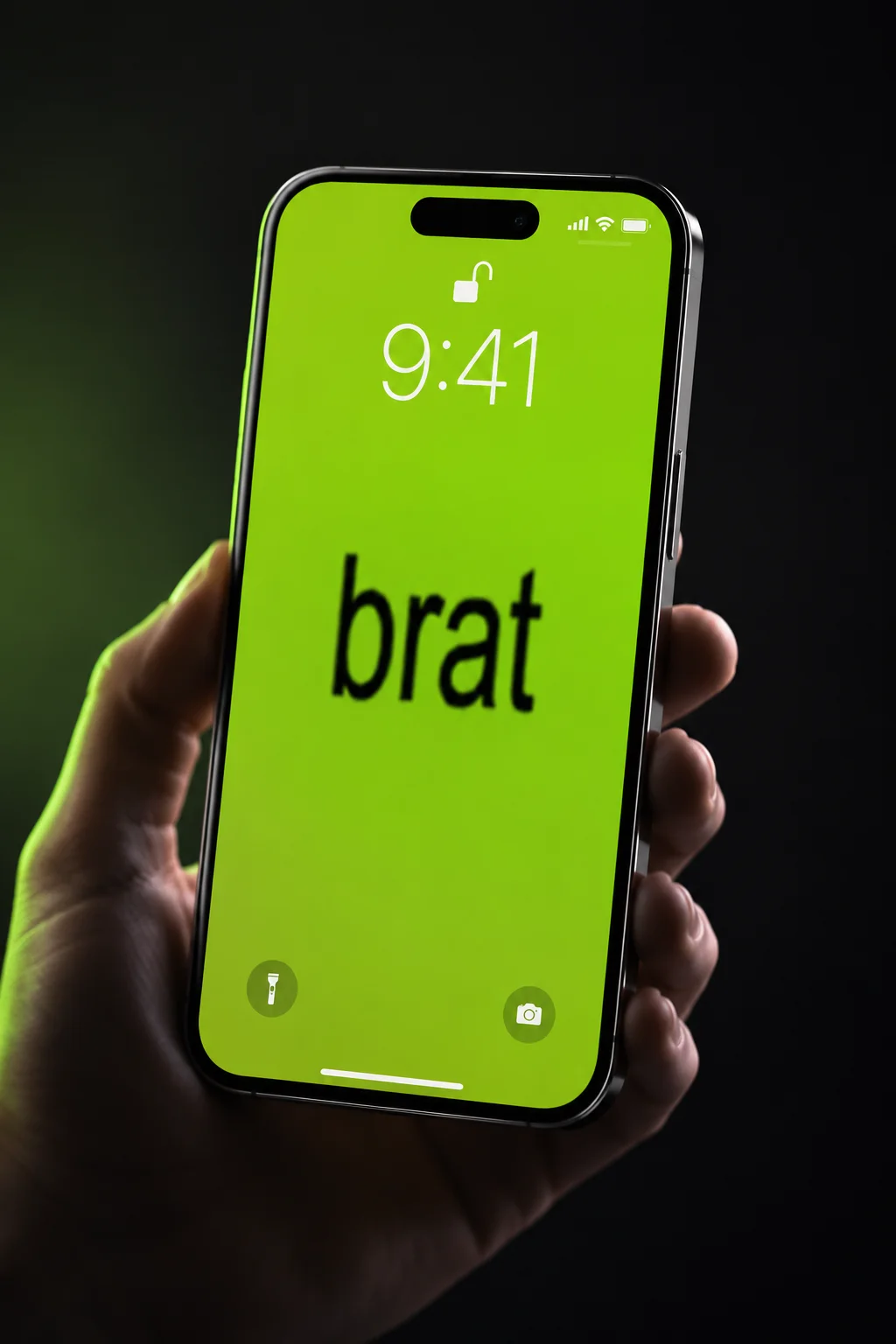
The exact sizes that fit iPhone and Android lock screens, plus the safe zone most brat wallpapers get wrong.
In this guide
A brat wallpaper works best built at 1290×2796 for most current iPhones (1320×2868 for iPhone Pro Max models) and at 1080×2400 or higher for Android. Build it taller than a square social post, keep the text out of the top and bottom 15-20% where the clock, notifications, and widgets sit, and export as PNG so the color stays exact instead of compressed.
A brat-style graphic sized for an Instagram post looks wrong stretched across a phone screen – it’s the wrong shape entirely. A wallpaper needs a tall portrait canvas, not a square one, and it needs empty space where your phone’s own clock and widgets already sit. This guide covers the actual sizes for iPhone and Android, where to leave that empty space, and how to build it directly in a brat generator instead of guessing at proportions. If you haven’t used one before, see what a brat generator actually is first.
Why a Brat Wallpaper Needs a Different Size Than a Post
A phone screen is a tall rectangle, not a square, and it already has its own fixed interface – clock, date, notifications, widgets – sitting on top of whatever image you set.
A square export built for Instagram or a profile picture is roughly 1:1. A phone screen is closer to 19.5:9 or 20:9 – a square image stretched to fill that shape gets distorted, or your phone crops most of it away to force the aspect ratio to fit. Building at the phone’s actual proportions from the start avoids both problems.
The Right Size for iPhone
1290×2796 pixels covers most current iPhone models; the largest Pro Max models use 1320×2868.
| iPhone group | Size to export |
|---|---|
| Most current standard and Pro models | 1290 x 2796 px |
| 6.1-inch models (a few generations back) | 1179 x 2556 px |
| Pro Max / largest current models | 1320 x 2868 px |
| One safe universal size for most current iPhones | 1290 x 2796 px |
Lock screen and home screen use the same pixel dimensions on iPhone – the difference is what’s drawn on top (the clock and notifications on the lock screen, app icons and widgets on the home screen), not the image size itself. If you’re building one wallpaper to cover several iPhone models without checking each one, 1290×2796 is the closest match for the widest range of current devices.
The Right Size for Android
1080×2400 covers most current Android phones; flagship models with higher-resolution screens go up to 1440×3120.
| Android tier | Size to export |
|---|---|
| Most current mid-range and standard phones | 1080 x 2400 px |
| Flagship / high-resolution screens | 1440 x 3120 px |
| Safe universal size across nearly any Android phone | 1080 x 1920 px |
Android is more fragmented than iPhone – screen sizes and aspect ratios vary by manufacturer instead of a small fixed set of models. If you don’t know which specific phone the wallpaper is going on, exporting a taller-than-needed canvas (1080×1920 or larger) and letting Android crop it during the “Set wallpaper” preview is more reliable than guessing an exact match.
Avoiding the Lock Screen Safe Zone
Keep your main text out of the top 15-20% and bottom 15% of the canvas, since that’s where the clock, date, notifications, and widgets sit on both platforms.
- Top zone: the clock and date sit near the top of the lock screen on both iPhone and Android. A bold word placed directly behind or overlapping this area gets partly covered.
- Bottom zone: notification shortcuts, the flashlight/camera icons, and (on iPhone) the “swipe up” home indicator all sit in the bottom strip of the screen.
- Center-safe zone: the middle 60-70% of the canvas is the space that stays fully visible and uncovered on most lock screen layouts – this is where a bold brat-style word or short phrase reads best.
This is different from a square social post, where the whole canvas is visible at once. On a phone wallpaper, planning around what’s actually going to be covered matters as much as the text and color themselves.
Step-by-Step: Building It in the Brat Generator
The homepage tool doesn’t have a preset literally labeled “wallpaper” yet, but building one correctly takes one extra step:
- Open the brat generator and select the Custom size option from the export size dropdown.
- Enter your phone’s exact dimensions from the tables above – for example 1290 for width and 2796 for height on a current iPhone.
- Type your word or short phrase – see 100 brat words for ideas – and drag it to sit within the center-safe zone described above, away from the top and bottom edges. If it’s a single word, the brat word generator is built around exactly that case.
- Pick a preset or build your own colors – see the brat color code guide for the exact green hex value – then check the contrast checker below the canvas if you’ve picked a custom color pair.
- Download as PNG rather than JPG – PNG doesn’t recompress the color the way JPG can, which matters more on a wallpaper you’ll look at all day than on a post someone scrolls past in a second.
Setting It as Your Wallpaper
On iPhone: save the downloaded image to Photos, then go to Settings, tap Wallpaper, choose “Add New Wallpaper,” and select it from your camera roll. iOS shows a live preview with the clock and widgets overlaid before you confirm – use this preview to check that your text isn’t sitting behind either one.
On Android: save the image, then long-press an empty spot on the home screen and choose Wallpapers (or open Settings and search “wallpaper,” since the exact menu path varies by manufacturer). Most Android wallpaper pickers also show a live preview with the clock and icons in place before you apply it.
This same platform-specific sizing approach applies elsewhere too – see the brat Instagram Story generator guide if you’re sizing for a story instead of a lock screen, or the brat album cover generator if you need a true high-resolution square export.
Common Mistakes
Mistake: Using a square export built for a social post.
A 1:1 image stretched or cropped to a 19.5:9 phone screen distorts the proportions or loses most of the design. Export directly at your phone’s actual portrait dimensions instead.
Mistake: Placing the main text at the very top or bottom of the canvas.
The clock, date, and notification icons sit in exactly those zones on the lock screen. Keep the focal text in the center-safe zone so it isn’t partly covered.
Mistake: Downloading as JPG instead of PNG.
JPG compression can slightly shift a flat color like brat green – see the brat color code guide for the exact hex, RGB, and HSL values – which is more noticeable on a wallpaper you see constantly than on a post viewed once. PNG keeps the exact color.
Mistake: Not checking the live preview before confirming.
Both iPhone and Android show a preview with the clock and widgets in place before you apply a new wallpaper – skipping that check is the most common reason people end up resetting it a second time.
FAQ
What size should a brat wallpaper be for iPhone?
1290×2796 pixels covers most current iPhone models. The largest Pro Max models use 1320×2868, and a few generations of 6.1-inch models use 1179×2556.
What size should a brat wallpaper be for Android?
1080×2400 covers most current Android phones. Flagship models with higher-resolution screens go up to 1440×3120, and 1080×1920 is a safe universal size if you don’t know the exact device.
Do the lock screen and home screen need different image sizes?
No, they use the same pixel dimensions on both platforms. What differs is what’s drawn on top – the clock and notifications on the lock screen, app icons and widgets on the home screen – not the underlying image size.
Why does my square brat design look wrong as a wallpaper?
A square (1:1) image doesn’t match a phone screen’s tall portrait shape, which is closer to 19.5:9 or 20:9. Your phone either stretches it, distorting the design, or crops most of it away.
Where should I avoid placing text on a wallpaper?
Avoid the top 15-20% (clock and date) and bottom 15% (notification and camera shortcuts, plus the home indicator on iPhone). The center 60-70% of the canvas stays fully visible on most lock screen layouts.
Should I download as PNG or JPG?
PNG. JPG compression can slightly shift a flat color like brat green, which is more noticeable on a wallpaper you look at constantly than on a social post.
Does the brat generator have a dedicated wallpaper preset?
Not yet – use the Custom size option and enter your phone’s exact dimensions from the tables in this guide instead of one of the social-media presets.
Can I use the same wallpaper for both my lock screen and home screen?
Yes, since both use identical pixel dimensions. Just be aware the home screen will have your app icons and widgets sitting on top, which covers more of the design than the lock screen does.
Is this free to use?
Yes, fully free, with no signup, no watermark, and no paywalled features.