How to Use Brat Text with a Transparent Background

Where it actually works, where it breaks, and how to check the transparency held before you post it anywhere.
In this guide
- Quick answer
- Quick recap: creating brat text with a transparent background
- Where a transparent brat text overlay actually works
- Where it breaks: per-app gotchas
- How to check your export is really transparent
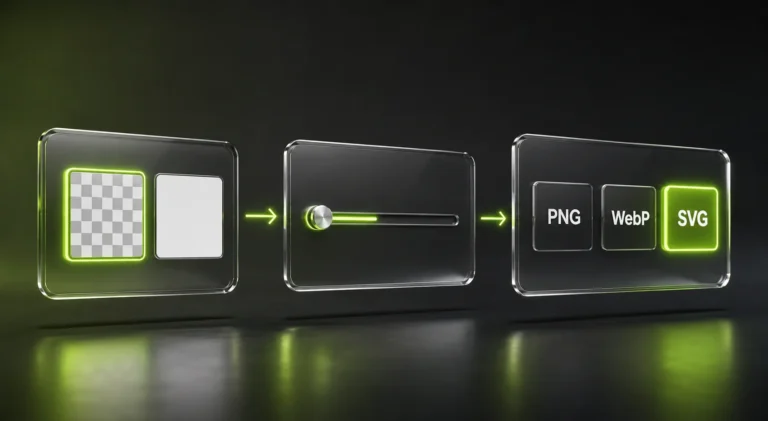
- PNG vs WebP vs SVG for an overlay
- Common mistakes
- Using a transparent overlay on mobile
- Transparent text vs. a logo vs. a cover
- FAQ
Brat text with a transparent background is a PNG or WebP export where only the styled text is visible – no colored box behind it – so it can sit on top of a photo, video, or another design. Making the file is the easy part; the real work is knowing where a transparent PNG actually stays transparent once it leaves the generator (most photo and video editors) and where it doesn’t (some apps flatten a plain image upload onto a solid background instead of treating it as a true overlay).
Quick Recap: Creating Brat Text with a Transparent Background
This part is quick if you’re using a generator built for it:
- Type your text and style it the way you want – font, color, spacing, chaos.
- Switch the background to transparent instead of the default solid or gradient fill.
- Export as PNG or WebP – both keep the transparency; JPG does not.
For the full breakdown of settings and the transparent-background toggle itself, see the brat text generator tool page – this article picks up from there, once you already have the exported file in hand.
Where a Transparent Brat Text Overlay Actually Works
A transparent PNG behaves as a true overlay – sitting on top of whatever’s behind it with no visible edges – in most tools built around layering images:
- Video editors (CapCut, Premiere, DaVinci Resolve, and most phone editing apps) – add it as an image layer or overlay track above your video clip.
- Photo editors (Photoshop, Affinity Photo, GIMP, Photopea) – drop it in as a new layer above a photo.
- Design tools (Canva, Figma) – import it as an image element placed over other content, though see the caveat below for exporting your own finished design back out.
- Messaging apps’ dedicated sticker tools – if the app has an actual “add sticker” or “add image overlay” feature (not just a regular photo send), a transparent PNG uploaded there keeps its transparency.
Where It Breaks: Per-App Gotchas
A few places a transparent export doesn’t behave the way people expect, worth checking before you rely on it:
- Regular photo uploads, as opposed to a sticker/overlay feature. Sending a transparent PNG through a normal photo-upload flow (rather than a dedicated overlay or sticker tool) often gets it flattened onto a solid background by the app, since it’s being treated as a photo rather than a layered graphic. If an app offers a specific sticker or text-overlay feature, use that instead of the regular photo upload.
- Free tiers of some general design tools. Certain design platforms have, at various points, gated transparent PNG export behind a paid plan even though transparent PNG import/editing is free – check your specific tool and plan rather than assuming transparent export is always included.
- Older or basic image viewers. Some very basic photo-viewing apps render a transparent area as solid white or black instead of see-through, even though the file itself is correctly transparent. This is a viewer limitation, not a problem with your export.
- Print-on-demand and physical transfers. A transparent PNG is the right file type for most print-on-demand and heat-transfer processes, but the specific method (screen print, DTG, sublimation) affects how the design actually reproduces – confirm the file requirements with whoever’s doing the printing rather than assuming any transparent PNG works identically everywhere.
None of this means the export itself is wrong – it usually means the transparency held perfectly fine, but the destination app or process handled it differently than a layering tool would.
How to Check Your Export Is Really Transparent
Before relying on a file, it’s worth confirming the transparency actually exported correctly rather than assuming it did:
- Open the file in an image editor (Photoshop, GIMP, Photopea, or even your phone’s photo editor) rather than a basic viewer. A genuinely transparent area shows the standard gray-and-white checkerboard pattern behind your text.
- Drop it onto a colored background as a quick test – place the PNG over a solid color image in any editor. If the area around the text shows that color through cleanly, the transparency is real; if you see a white or black box, it isn’t.
- Check the file format is actually PNG or WebP, not JPG – a simple but common cause of “why isn’t this transparent,” since JPG can’t hold transparency at all regardless of how the generator was set up before export.
PNG vs WebP vs SVG for an Overlay
All three can hold a transparent background, but they’re not equally supported across the apps you’d actually use for layering:
| Format | Best For | Watch Out For |
|---|---|---|
| PNG | The safest default – supported by essentially every photo and video editor | Larger file size than WebP for the same image |
| WebP | Smaller files while keeping transparency, good for web use | Some older or more basic video-editing apps don’t accept WebP as an import format |
| SVG | Scaling text to any size without quality loss | Most video editors and many photo apps can’t import SVG directly as a layer – convert to PNG first for those |
PNG is the format to reach for by default when the destination is unfamiliar or you’re not sure it’ll accept the file – it has the widest support of the three for actual layering use, even though WebP is smaller and SVG scales better.
Common Mistakes
Mistake: Uploading a transparent PNG through a regular photo-send flow and expecting it to overlay.
Many apps flatten a plain photo upload onto a solid background. Look for a dedicated sticker, overlay, or text-layer feature instead of the standard photo upload if the app has one.
Mistake: Assuming JPG will “keep the transparency this one time.”
JPG has no alpha channel at all – it’s not a setting that can be toggled on, it’s a limitation of the format itself. Any transparent area becomes solid white or black on export, every time.
Mistake: Never actually checking the export.
A file can look fine in a small thumbnail preview and still not be genuinely transparent. Open it in an image editor and look for the checkerboard pattern before you rely on it somewhere important.
Mistake: Using SVG for a video overlay.
SVG is excellent for scaling text at any size, but most video editors expect a raster image (PNG or WebP) for an overlay layer, not a vector file. Export as PNG for video work specifically.
Using a Transparent Overlay on Mobile
The workflow is the same on a phone, just with mobile-specific apps at each step:
- Create and export the transparent PNG from a browser-based brat text generator – works the same in mobile Safari or Chrome as on desktop.
- Save it to your photo library using the download button, or the Copy button plus a paste into your Photos app if downloads behave inconsistently.
- Open your video or photo editing app (CapCut, InShot, a phone photo editor) and add the saved PNG as an image layer or overlay, the same way you would on desktop.
- Avoid the regular photo-send flow in messaging apps if you want it to stay layered – use a sticker or overlay feature if the app has one instead.
Transparent Text vs. a Logo vs. a Cover
All three can start from the same transparent-background technique, but they’re built for different jobs:
Transparent text is meant to sit on top of something else you already have – a photo, a video, another design – and disappears as its own standalone image once layered.
A brat-style logo also uses a transparent background, but it’s built to be reused repeatedly at many sizes as its own mark, not layered once onto a specific piece of content.
A brat-style cover is the opposite case – a solid background is the point, not something to remove, since a cover is meant to stand alone rather than layer onto anything. A brat-style Instagram post usually falls into this same solid-background category too, unless you’re specifically layering text over an existing photo.
FAQ
How do I make brat text with a transparent background?
Use a brat text generator: style your text, switch the background to transparent, and export as PNG or WebP. Both formats keep the transparency; JPG does not.
Why isn’t my transparent PNG showing as transparent?
Usually one of three things: it was accidentally exported as JPG instead of PNG/WebP, it’s being viewed in a basic image viewer that renders transparency as solid white or black, or it was uploaded through a regular photo-send flow that flattened it instead of a dedicated overlay/sticker feature.
How can I check if my export is really transparent?
Open it in an image editor rather than a basic viewer – a genuinely transparent file shows the standard gray-and-white checkerboard pattern behind the text. You can also drop it onto a colored background as a quick test.
Can I use transparent brat text as a video overlay?
Yes. Export as PNG (the safest format for video editors) and add it as an image or overlay layer in CapCut, Premiere, or a similar editor.
Why did my transparent image turn into a white box after I uploaded it somewhere?
Most likely the app flattened a regular photo upload onto a solid background, which many apps do unless you use their specific sticker or overlay feature instead of the standard photo-send option.
Does Canva keep transparent backgrounds?
Canva can import and display a transparent PNG on a layer just fine. Exporting your own finished design with a transparent background has, at various points, required a paid plan on some design platforms – check your specific plan rather than assuming it’s always free.
What’s the difference between transparent text and a transparent logo?
Both use the same transparent-background technique, but text is typically layered once onto a specific photo or video, while a logo is designed to be reused repeatedly at many different sizes as its own standalone mark.
Should I use PNG or WebP for a transparent overlay?
PNG has the widest support across photo and video editors and is the safer default. WebP produces smaller files and also keeps transparency, but some older or more basic editing apps don’t accept it as an import.
Can I print a transparent brat text design on merchandise?
A transparent PNG is generally the right file type for print-on-demand and heat-transfer printing, but the specific method being used affects how it reproduces – confirm the exact file requirements with whoever is doing the printing.
Does this work on mobile?
Yes. You can create and export the transparent PNG in a mobile browser, then add it as a layer in a mobile photo or video editing app the same way you would on desktop.