Brat Generator Not Working? 8 Fixes (2026 Guide)
The real causes behind the most common brat generator problems — not just “try refreshing the page.”
In this guide
- Quick answer
- Blank or missing preview
- Text is hard to read
- Download button does nothing
- Copy to clipboard fails
- The green looks wrong
- Export looks blurry or pixelated
- Tool won’t load at school or work
- Works on desktop, breaks on mobile
- Common mistakes
- Expert tips
- FAQ
Most “brat generator not working” problems come down to one of three things: no text has been typed yet, the browser is blocking a download or clipboard permission, or a color/contrast setting was changed and nothing was typed on top of it. All three take under a minute to fix once you know which one you’re looking at.
Searching “brat generator not working” almost always means you’re mid-task — trying to finish a graphic for something, not troubleshooting for its own sake. Most guides on this stop at “try refreshing the page,” which fixes almost nothing. Below are the eight problems that actually come up, what’s really causing each one, and the specific fix — not a generic reset.
Brat Generator Not Working: Blank or Missing Preview
Short answer: the text field is empty, or the text color matches the background color exactly.
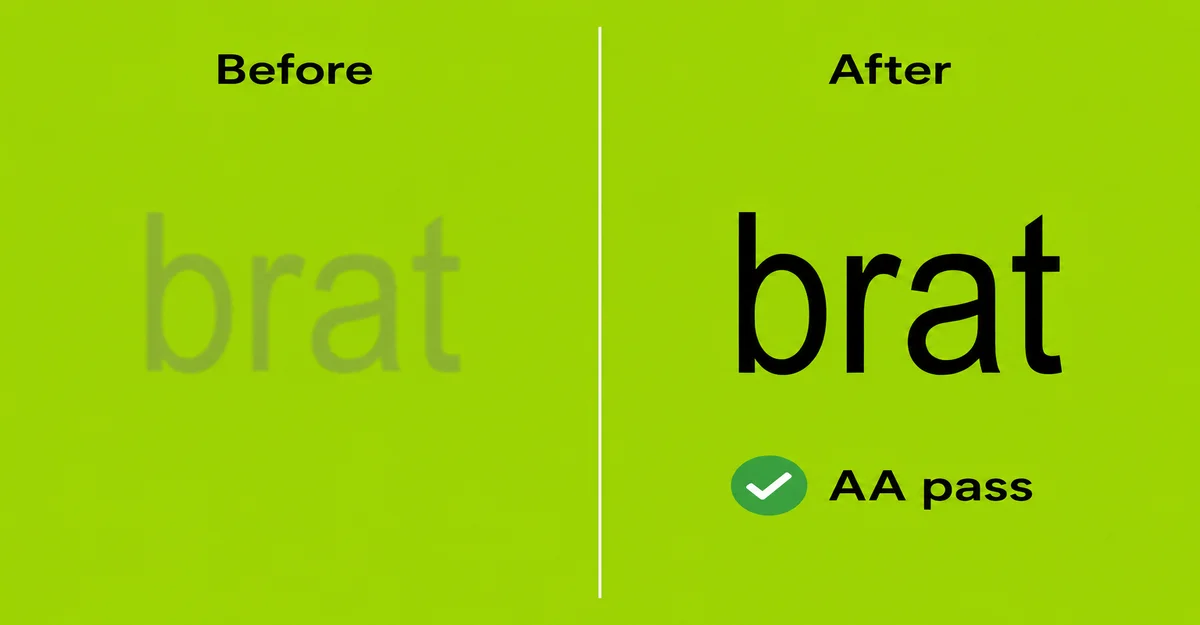
This is the single most common report, and it’s almost never a bug. A brat-style generator renders your text on top of a colored canvas — if nothing has been typed, there’s nothing to render, so the preview looks blank even though the tool is working correctly. The second cause is subtler: if you’ve customized both the background and text color, it’s easy to land on two colors that are technically different but visually identical at a glance (dark green text on dark green background, for example), which looks exactly like a blank preview from a distance.
Fix: type something into the text field first, then check that your text color and background color aren’t the same swatch. If you’re using a brat generator with a live contrast checker, a failing contrast score is often the same underlying issue showing up as a warning instead of a mystery.
Text Is Hard to Read
Short answer: low contrast between text and background color, not a rendering problem.
This is different from a fully blank preview — the text is visible, just strained to read, especially on a phone screen in bright light. It happens most often after switching off the default green-and-black combination to a custom color pairing that looks fine on a desktop monitor but doesn’t hold up elsewhere.
Fix: stick to combinations with strong contrast — black text on the classic brat green, or white text on black, are both safe defaults. If your tool includes a contrast checker, run it before exporting; it’s running the same WCAG AA math (4.5:1 minimum contrast ratio) that accessibility auditors use, so a pass there means the text will hold up across devices and lighting conditions, not just on your own screen.
Download Button Does Nothing
Short answer: the browser is silently blocking the download, usually due to a permission setting or a pop-up blocker.
Browser-based generators trigger a file download through the browser itself rather than a server, which means browser-level settings can intercept it without any visible error message — the button appears to do nothing, when really the download was blocked before it started.
- Check for a blocked-download notification in the address bar (usually a small icon or banner you need to click to allow).
- Disable pop-up or download blockers for the site, since some browsers treat programmatic downloads similarly to pop-ups.
- Try a different export format — if PNG silently fails, JPG, WebP, or SVG sometimes go through, which narrows down whether it’s a format-specific issue or a browser permission issue.
- On mobile, some browsers save downloads to a different location than expected (a Files app instead of Photos/Gallery) — check there before assuming the download failed entirely.
Copy to Clipboard Fails
Short answer: clipboard access requires an explicit browser permission that’s easy to miss or deny by accident.
Unlike downloading a file, copying an image directly to your clipboard requires the browser to grant the page clipboard-write permission, and some browsers show that permission prompt only once, briefly, the first time you use the feature. If you dismissed it or it appeared off-screen, every future attempt fails silently with no visible reason why.
Fix: check your browser’s site settings for the page and make sure clipboard permission is set to allow, not blocked. If clipboard copy still doesn’t cooperate, downloading the file and attaching it manually is a reliable fallback that works regardless of clipboard permissions.
The Green Looks Wrong
Short answer: a generic “lime” or “green” swatch was used instead of the exact brat green hex code.
The actual color from the album cover is a specific, slightly acidic lime green — hex code #8ACE00 — not a generic green or neon shade. Most design tools default to a close-but-not-exact green swatch, which is why a manually recreated version often looks subtly off even when everything else about the layout is correct. See the exact brat green hex code breakdown for the RGB, HSL, and CMYK equivalents too.
Fix: enter #8ACE00 directly as a hex value rather than picking a green visually from a color wheel. If you’re using a preset-based tool, the default “Classic” preset should already have this exact value built in — if the green still looks off after resetting to defaults, double-check your screen’s color calibration, since some displays render green noticeably warmer or cooler than others.
Export Looks Blurry or Pixelated
Short answer: pixelation is usually an export-size mismatch; a blur or “chaos” style effect looking off is usually that setting reading differently at a different resolution, not a bug.
These are two different problems with two different causes. Pixelation happens when a small export gets stretched up after the fact for a use case that needed a bigger file — a 1080px social export blown up for a poster or a print run, for example. The fix is to export at a larger size preset to begin with rather than scaling the file afterward. Blur or distortion effects are different: on tools where blur is bundled into a single “chaos” or “distortion” slider, that setting is usually a fixed amount rather than one that automatically scales with your chosen export size. That means the same setting can look like a strong, obvious effect on a small export and read as barely-there on a large one — not more blurred at the bigger size, less — since the same blur amount is now smaller relative to a bigger canvas.
- Match your export size preset to where the image is actually going — a size meant for a profile picture will look soft blown up to a poster.
- If you need a large, sharp export, look for an SVG export option if your tool offers one — vector exports scale to any size with zero pixelation, unlike PNG or JPG.
- If a blur or chaos-style effect looks weaker than expected on a large export, that’s expected behavior, not a bug — increase the effect for that specific size rather than assuming it should look identical to a smaller export.
Tool Won’t Load at School or Work
Short answer: network-level filtering, not the generator itself being broken.
Some school and workplace networks block categories of sites (image tools, meme generators, social content) at the network level, which looks identical to the tool being down even though it loads fine from any other connection. This is a very common search — often phrased as a generator being “unblocked” or not — and it’s a network policy issue, not a bug to report.
Fix: try the same link on mobile data instead of the school or office Wi-Fi to confirm whether it’s network filtering. If it loads fine off that network, the tool itself is working correctly and the block is coming from local network policy, which isn’t something a fix on the tool’s side can bypass.
Works on Desktop, Breaks on Mobile
Short answer: usually a browser-specific quirk (older mobile browser version, or a non-default browser) rather than the site being un-optimized for mobile.
Browser-based generators rely on modern web features for live preview, drag-to-reposition, and file export — features that are broadly supported but not always consistently on older or less common mobile browsers.
- Update your mobile browser to the latest version, since older versions sometimes lack support for newer canvas or file-download APIs.
- Try the default browser for your device (Safari on iOS, Chrome on Android) if you’re using a third-party browser, since some in-app browsers (opened from within another app) have more limited capabilities than a full standalone browser.
- If drag-to-reposition feels unresponsive on a touchscreen, try a firm, deliberate press-and-hold rather than a quick tap-and-drag — touch input registers slightly differently than a mouse click for this kind of interaction.
Common Mistakes
Mistake: assuming a blank or broken-looking preview means the tool is bugged.
Why it happens: an empty canvas and an actual bug look identical from the outside — there’s no error message either way.
How to fix it: type a test word and switch to a default preset like Classic before troubleshooting further. That isolates whether it’s a setting issue or a genuine problem in under ten seconds.
Mistake: repeatedly clicking a download or copy button that already failed once.
Why it happens: clicking again feels like the natural response when nothing visible happens.
How to fix it: check your browser’s site permissions for downloads and clipboard access instead of retrying the same click — a blocked permission fails the same way every time until it’s changed, not randomly.
Mistake: picking a green swatch by eye instead of entering the exact hex code.
Why it happens: most color pickers make it easy to land on a close, but not exact, green without realizing it.
How to fix it: type #8ACE00 directly into the color field rather than clicking a swatch that merely looks close.
Expert Tips
- Before assuming something is broken, reset to the default preset first — it isolates whether the issue is a genuine bug or the result of a custom setting combination.
- A contrast checker warning is worth treating as informative rather than optional — if it’s flagging a problem, that same low-contrast issue is very likely what’s also causing a “blank preview” or “hard to read” report.
- Keep exports at the size preset that actually matches where the image is going, rather than one default size for everything — most “blurry export” complaints trace back to this rather than an actual quality bug.
- If a download or clipboard action fails once, it usually keeps failing the same way until the underlying browser permission is fixed — retrying the same click repeatedly rarely resolves it.
Frequently Asked Questions
Why is my brat generator preview completely blank?
Almost always because no text has been typed yet, or because the text color and background color are too close to tell apart. Type something first, then check that the two colors are genuinely different.
Why won’t my brat image download?
Usually a browser-level block, not a broken download button. Check for a blocked-download notification in your address bar, disable pop-up blockers for the site, and try a different export format to narrow down the cause.
Why does copy to clipboard not work?
Clipboard access needs an explicit browser permission that’s easy to miss the first time it’s requested. Check your browser’s site settings for clipboard access, or download the file manually as a reliable fallback.
Why does the green look different from the original album cover?
Most likely a generic green swatch was used instead of the exact hex code, #8ACE00. Enter that value directly rather than picking a green visually.
Why is my exported image blurry or pixelated?
Usually an export-size mismatch – a small export stretched for a large use case pixelates. Blur or chaos-style effects don’t scale with export size automatically either – the same setting looks stronger on a small export and weaker on a large one, not the other way around. Match your size preset to where the image is actually going, and increase the effect for larger exports if it looks weaker than expected.
Is brat generator blocked at some schools or workplaces?
Some networks block categories of sites like image or meme tools at the network level, which can look identical to the tool being down. Testing on mobile data confirms whether it’s a network policy issue rather than a bug.
Why does the tool work on my computer but not my phone?
Usually an outdated mobile browser or a limited in-app browser opened from within another app. Try updating your browser or opening the link in your device’s default browser instead.
Is there a way to check if my text will actually be readable before I download it?
Yes, if your tool includes a contrast checker – it runs the same WCAG AA math (4.5:1 minimum ratio) accessibility auditors use and flags low-contrast combinations before you export, rather than after.
My download worked once but stopped working after that. Why?
A browser permission was likely changed or reset in between attempts. Recheck your download and clipboard permissions for the site rather than assuming the tool itself changed.
Almost none of these problems are actually the generator being broken — they’re browser permissions, color choices, or size mismatches that look like bugs from the outside. Working through the specific symptom above usually gets you unstuck faster than a refresh-and-hope approach. If you’re still getting familiar with the tool itself, what a brat generator actually is is a good starting point.
Publishing notes (not part of the visible article — safe to delete before publishing): Written per CONTENT-RULES.md, matching the format of blog-what-font-does-brat-use.html. Search intent: informational/troubleshooting, high task-completion intent. Primary keyword “brat generator not working” placed in title, meta description, URL, first 100 words, the first H2 area, and image alt text above. Genuine information gap versus competitors: allbratgenerator.com covers 4 problems in a few lines each with no root-cause explanation; bratify.app’s troubleshooting doc is video-export-specific and doesn’t apply to a static-image tool. This post covers 8 problems, explains the actual root cause behind each (not just a one-line fix), and ties two of them (contrast, SVG export) to features this tool actually has that most competitors don’t. FAQPage schema below feeds AI Overviews and other answer engines even though Google retired the visible FAQ rich-result snippet in May 2026. Suggested internal links once relevant: Brat Color Code (green hex code detail), What Font Does Brat Use (blur/spacing detail), the homepage tool itself (contrast checker, SVG export, size presets).