How to Make a Brat Instagram Post for Free
The right size, the right settings, and how it actually looks once it’s cropped into your grid.
In this guide
- Quick answer
- Step-by-step: how to make a brat Instagram post
- Square vs. portrait: which size to pick
- Recommended settings for a feed post
- How your post looks in the profile grid
- Making a carousel post
- PNG vs JPG vs WebP vs SVG for a feed post
- Common mistakes
- Making a post on mobile
- Feed post vs. Instagram Story
- FAQ
To make a brat Instagram post online for free, type your text, keep the classic lime-green background (or switch it to fit your feed), export at a square 1080×1080 size or a taller 1080×1350 portrait size for more room in the feed, and download as PNG or JPG. Unlike a Story, a feed post is viewed in a scrollable grid rather than full-screen, so there are no interface overlays to design around – just the size and the grid-thumbnail crop to plan for.
Step-by-Step: How to Make a Brat Instagram Post
These steps work with any browser-based brat generator, including the free tool on this site:
- Type your text. A single word or short phrase reads clearly in a feed post; longer text works too since a feed post can be paused on, unlike a Story.
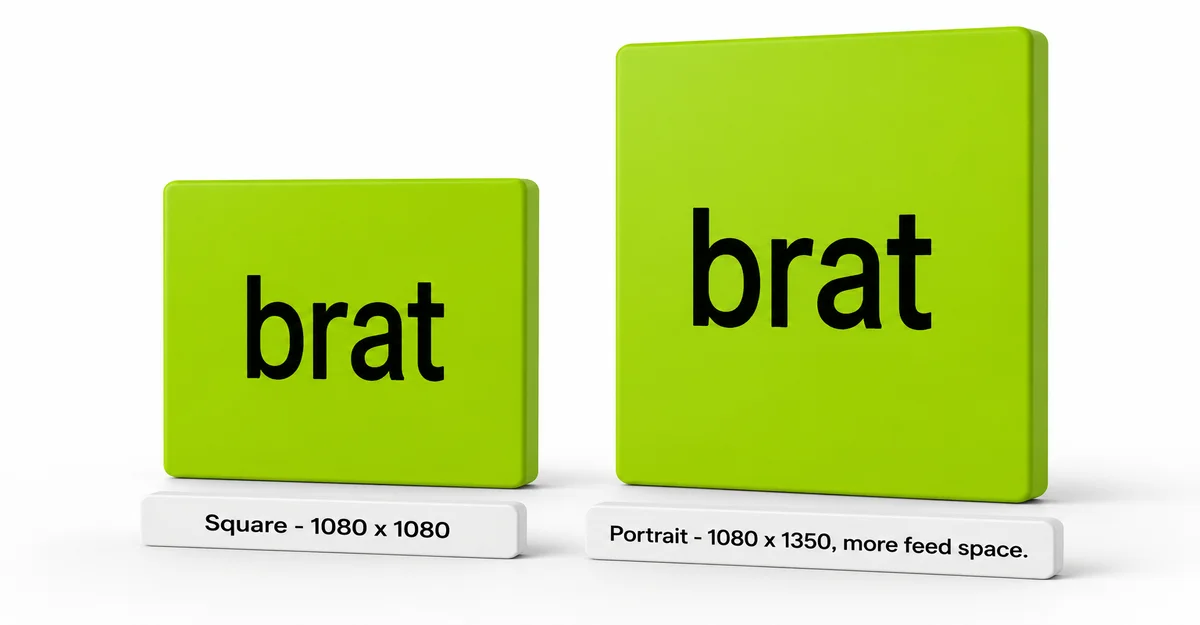
- Pick your size. Square (1080×1080) is the default and simplest option; portrait (1080×1350) takes up more vertical space in the feed if you want your post to stand out while scrolling. See the size comparison below.
- Adjust the color, font, and chaos/blur the same way you would for any brat-style graphic – a feed post doesn’t need different visual settings than a cover, since it isn’t shrunk down the way a logo is.
- Check how it will crop in your grid if you’re using the portrait size – see the grid-thumbnail section below before you finalize the design.
- Download as PNG or JPG and upload it directly through the Instagram app – browser-based tools can’t post to Instagram directly, since Instagram doesn’t offer a public posting API for that.
You can create your own with the free brat generator on this site – it has the Instagram Post size preset built in, and a custom size option for the 4:5 portrait dimensions.
Square vs. Portrait: Which Size to Pick
Instagram feed posts support two common shapes, and each behaves differently once it’s actually posted:
| Size | Dimensions | Behavior in Feed |
|---|---|---|
| Square (1:1) | 1080 x 1080 px | Standard size, matches the profile-grid thumbnail shape exactly – what you design is what shows in the grid |
| Portrait (4:5) | 1080 x 1350 px | Takes up more vertical screen space while someone scrolls, but gets center-cropped down to a smaller square-ish area for the profile grid thumbnail |
The square size is the safer default, since there’s no cropping mismatch between what you design and what appears in your profile grid later. The portrait size is worth using when you want a single post to command more attention while scrolling – just design it knowing the full image only shows edge-to-edge in the main feed and in-post view, not in the grid preview.
The tool used for this guide has “Instagram Post” as a built-in 1080 x 1080 square preset. The 1080 x 1350 portrait size isn’t one of the listed presets, so enter it manually using the custom width and height fields instead of a dropdown option.
Recommended Settings for a Feed Post
A feed post doesn’t need the restrained settings a logo does, since it isn’t being shrunk down to icon size – treat it more like a cover:
| Setting | Typical Range | Good Starting Point |
|---|---|---|
| Font size | 24-260px | 140-180 for a single word, 60-90 for a longer caption-style line |
| Letter spacing | -10 to 40 | -2 to -4 for the classic condensed look |
| Line height | 70-160 | 100 for one or two lines |
| Chaos (blur + skew + noise combined) | 0-100 | 40-60 for the classic distressed look – a feed post is viewed close enough and long enough that this range stays readable |
How Your Post Looks in the Profile Grid
Instagram’s profile grid shows a cropped preview of each post rather than the full image at its original aspect ratio – a square post shows exactly as designed, but a portrait post gets trimmed down toward its center to fit the grid’s more square-ish thumbnail shape. That means anything placed near the very top or bottom edge of a 1080 x 1350 portrait design may not be visible in the grid view, even though it’s fully visible when someone opens the post directly.
The practical fix is simple: for a portrait post, keep your text and any important detail centered in the middle of the frame rather than close to the top or bottom edge – the same “keep it centered” logic used for Instagram Story safe zones, just for a different reason. A square post doesn’t have this issue at all, which is the main reason it’s the safer default when you’re not sure.
Making a Carousel Post
A carousel is a single Instagram post that holds multiple images someone swipes through, rather than one image. A brat generator doesn’t bundle multiple images into one carousel file – Instagram handles that bundling on their end – but making the individual images is straightforward:
- Make each slide as a separate image using the same size for all of them (square or portrait, but keep it consistent across the set).
- Keep a consistent style across slides – same font, same color palette, same chaos level – so the set reads as one post rather than several unrelated images.
- Download each image individually, then upload them together as one post through Instagram’s own multi-image selector when posting.
Instagram assembles the carousel from the images you upload together – there’s no separate “carousel export” step on the generator side.
PNG vs JPG vs WebP vs SVG for a Feed Post
For a feed post specifically, the choice is simpler than for a logo, since transparency usually isn’t the deciding factor:
| Format | Best For | Watch Out For |
|---|---|---|
| PNG | Sharpest text and color accuracy for a flat-color brat-style post | Larger file size than JPG, rarely an issue at feed-post dimensions |
| JPG | Smaller file size, fine for a post with no transparent areas | Fills any transparent background with solid white instead of keeping it transparent |
| WebP | Smaller files than PNG while keeping transparency if you need it | Slightly less universal support in older software than PNG |
| SVG | Not typically needed for a single feed post | Instagram’s upload flow expects a raster image (PNG/JPG), not a vector file |
PNG is the safe default for a feed post. Instagram also re-compresses whatever you upload on its own end regardless of format, so starting from a sharp, uncompressed export gives the platform’s own compression the best possible source to work from.
Common Mistakes
Mistake: Designing a portrait post with text near the top or bottom edge.
The profile grid crops a 4:5 portrait post toward its center, so anything close to the edges can disappear from the grid thumbnail even though it’s visible in the full post.
Mistake: Mixing square and portrait sizes within one carousel.
Instagram displays a carousel at a single consistent aspect ratio based on the first slide, so mismatched sizes in later slides get cropped to match – keep every slide in a carousel the same dimensions.
Mistake: Expecting the generator to post directly to Instagram.
A browser-based generator creates the image file; posting it still happens through the Instagram app or website. There’s no direct-publish integration, since Instagram doesn’t offer a public API for that kind of posting.
Mistake: Exporting as JPG when the design needs a transparent background.
JPG has no transparency support – any transparent area becomes solid white on export. Use PNG or WebP instead if part of the design needs to stay transparent.
Making a Brat Instagram Post on Mobile
The same process works on a phone browser, then hands off to the Instagram app for the actual upload:
- Open the generator in your phone’s browser – no separate app needed to create the image.
- Type your text and adjust settings with tap-and-drag, same controls as desktop.
- Choose your size – Instagram Post preset for square, or enter 1080 x 1350 manually for portrait.
- Download or use the Copy button if downloading behaves inconsistently in your mobile browser.
- Open Instagram and upload the saved image as a new post, using Instagram’s own crop and caption tools from there.
Feed Post vs. Instagram Story
Both are Instagram formats, but they call for different design decisions:
A feed post is square or portrait, sits permanently in your scrollable feed and profile grid, and gets viewed for as long as someone chooses to pause on it – text length and chaos level have more room to work with.
A Story is a tall 9:16 frame, disappears after 24 hours unless saved to a highlight, and gets viewed full-screen for a second or two with Instagram’s own profile bar and reply field overlaid on top – which means keeping text in a safe center zone matters far more. For the Story-specific size and safe-zone breakdown, see the brat Instagram Story generator guide.
FAQ
How do I make a brat Instagram post for free?
Use a free browser-based brat generator: type your text, pick a square (1080×1080) or portrait (1080×1350) size, adjust the color and chaos to taste, and download as PNG or JPG to upload through the Instagram app.
What size should a brat Instagram post be?
1080 x 1080 pixels for a standard square post, or 1080 x 1350 pixels for a taller portrait post that takes up more space in the feed.
Should I use square or portrait for my post?
Square is the safer default since it matches the profile-grid thumbnail exactly with no cropping. Portrait takes up more feed space but gets center-cropped in the grid view, so keep important details away from the top and bottom edges.
Can I make a carousel post with a brat generator?
You can make each slide as a separate image with a brat generator, then upload them together as one post using Instagram’s own multi-image selector – the generator doesn’t bundle multiple images into a carousel itself.
Why did part of my portrait post disappear from my profile grid?
Instagram’s profile grid shows a center-cropped preview of portrait (4:5) posts rather than the full image. Anything placed close to the top or bottom edge can fall outside that cropped area.
What’s the difference between a brat Instagram post and a brat Instagram Story?
A post is square or portrait, stays in your feed and grid, and can be viewed as long as someone likes. A Story is a tall 9:16 frame viewed full-screen for a second or two, with Instagram’s interface overlaid on top – which needs different safe-zone handling.
What file format should I use for a feed post?
PNG for the sharpest result, or JPG if file size matters more and you don’t need a transparent background. Avoid JPG if any part of the design needs to stay transparent.
Can I post directly from the generator to Instagram?
No. The generator creates the image file; posting still happens through the Instagram app or website, since Instagram doesn’t offer a public API for direct publishing from a third-party tool.
Does Instagram compress the image after I upload it?
Yes, Instagram re-compresses every upload on its own end regardless of the format you send. Starting from a sharp, uncompressed PNG or JPG export gives that compression the best source to work from.
Does this work on mobile?
Yes. Browser-based brat generators typically work on both desktop and mobile – you create the image in the browser, then upload it through the Instagram app itself.