Brat Generator vs Canva: Which Should You Use?
Two very different tools that happen to overlap for exactly one job.
In this guide
A dedicated brat generator is faster for a single brat-style image, since the correct green, font, and blur are already set as defaults – no configuration needed. Canva is the better choice if the cover is part of a bigger design project you’re already building there, or if you need Canva’s templates, brand kit, or team features. For just one quick brat-style image, a generator wins on speed and cost; for anything bigger, Canva’s flexibility matters more.
What Each Tool Is
These aren’t really competitors in the usual sense – they’re built for different jobs that happen to overlap for this one specific use case.
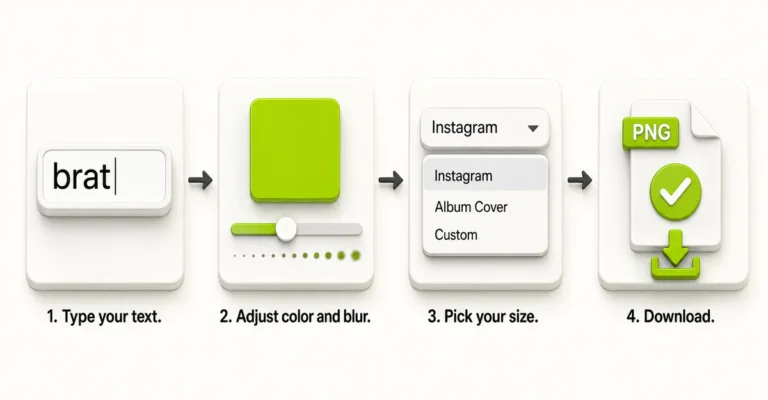
A brat generator is a single-purpose tool: type text, get a brat-style image out, in seconds. It exists to do exactly one thing well, with the correct color, font, and effect already configured before you touch anything.
Canva is a general-purpose design platform covering social posts, presentations, documents, videos, and more. Recreating the brat look in Canva means manually setting the color, font, and spacing yourself – Canva doesn’t have a “brat” preset, because that’s not what it’s built for. The Canva-specific walkthrough covers exactly how to set that up step by step, if that’s the route you choose.
Feature-by-Feature Comparison
| Feature | Brat Generator | Canva |
|---|---|---|
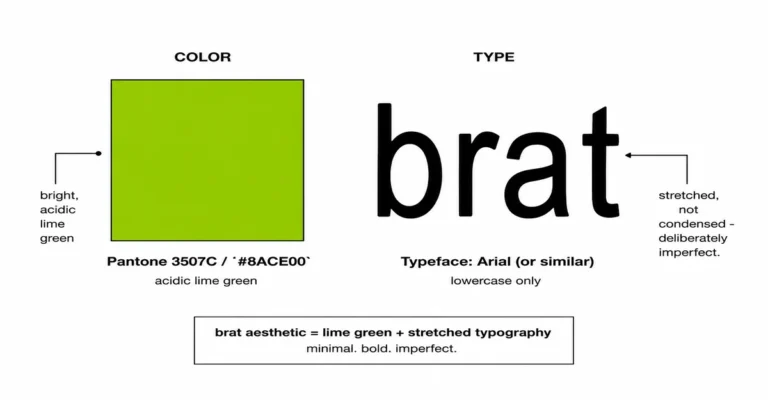
| Correct green as a default | Yes, built in | No – enter hex #8ACE00 manually |
| Correct font (Arial Narrow) | Yes, built in | Available, but must be selected manually |
| Blur/distress effect | Yes, single slider | Not native – limited workarounds, mostly Pro-gated |
| Drag-to-reposition text | Yes | Yes, standard text box dragging |
| Transparent PNG export | Yes, free | Canva Pro only |
| Export formats | PNG, JPG, WebP, SVG | PNG, JPG, PDF, and more |
| Templates for other design types | No – single purpose | Yes – thousands, across many formats |
| Brand kit / team collaboration | No | Yes, especially on paid plans |
| Account required | No | No for free tier, yes for Pro features |
| Time for one brat-style cover | Under a minute | A few minutes, more if it’s your first time |
Speed: How Long Each One Takes
For a single brat-style image, the time difference comes down to setup, not skill. On a dedicated brat generator, the green, font, and blur are already correct the moment the page loads – you type, adjust position if needed, and export. That’s realistically under a minute for most people.
In Canva, the same result needs the background color entered manually – the exact hex value is in the brat color code guide if you’re setting it up yourself – the font searched and applied, case switched to lowercase, and letter spacing adjusted before you’re even close to the reference look. Blur then has to be approximated separately, since Canva doesn’t have a matching native effect. None of these steps are hard individually, but they add up to a few extra minutes even for someone who already knows Canva well, and longer the first time through.
Cost: Free vs Paid, Honestly
Both tools are free to start, but the free tiers cover different amounts of what people want:
| Brat Generator | Canva | |
|---|---|---|
| Free tier covers | Everything – full editor, all export formats, transparent PNG | Design tools and standard exports, but not transparent PNG |
| What requires payment | Nothing | Transparent background export, premium templates and elements, brand kit |
| Paid plan cost | N/A | US$180/year for one person (per Canva’s own pricing page) |
If a transparent background is the only reason you’d consider Canva Pro, it’s worth knowing a dedicated generator already includes that for free – see the transparent background guide for how that export works.
When Canva Is the Better Choice
- You’re already building something bigger in Canva – a full Instagram post with a brat-style graphic as one element, a printed flyer, or a multi-slide presentation – and don’t want to jump between two tools.
- You need Canva’s brand kit or team features to keep a consistent look across multiple people working on the same project.
- You want access to templates and stock elements beyond just text on a colored background.
When a Brat Generator Is the Better Choice
- You want one brat-style image, quickly – a profile picture, a meme, a single social post – without configuring color, font, and spacing by hand.
- You need a transparent background and don’t want to pay for Canva Pro to get it.
- You want the blur/distress effect to actually match the original, rather than approximating it with a workaround.
- You don’t want to create an account or open a larger app just to make one image.
- You want to use a font similar to Arial Narrow without hunting one down yourself – see best fonts similar to the brat font if you’re curious about the options either way.
Can You Use Both Together?
Yes, and this is often the most practical approach for a bigger project. Make the brat-style text image on a dedicated generator first, exporting it as a transparent PNG, then bring that finished image into Canva as an element inside a larger design – a flyer, a carousel post, or a presentation slide. This gets the exact color, font, and blur right without spending time recreating them manually inside Canva, while still giving you Canva’s layout tools for everything else around it.
Common Mistakes
Mistake: Trying to recreate the blur effect in Canva before checking if it’s actually available.
Canva’s core text tools don’t include a native blur slider. Check what’s realistically achievable before spending time on a workaround that won’t fully match.
Mistake: Paying for Canva Pro only to get a transparent background.
If that’s the only Pro feature you need, a dedicated brat generator already exports transparent PNGs for free.
Mistake: Using a generator when the project really needs Canva’s broader toolset.
A generator is built for one job. If the real task is a multi-element flyer or a branded slide deck, Canva’s templates and layout tools will save more time overall.
FAQ
Is a brat generator better than Canva?
For a single brat-style image, yes – it’s faster and has the correct color, font, and blur built in. For a bigger design project, Canva’s broader toolset is more useful.
Can Canva make a brat-style cover for free?
Yes, the font and color are both available on Canva’s free plan. The one limitation is exporting with a transparent background, which requires Canva Pro.
Which one is faster for a single image?
A dedicated brat generator, since the color, font, and blur are already set as defaults – Canva requires setting each of these manually first.
Does Canva have a blur effect that matches the brat look?
Not natively. Canva’s core text tools don’t include a blur slider, so the effect has to be approximated through workarounds that don’t fully match a generator’s built-in blur.
Is Canva Pro worth it just for brat-style covers?
Usually not. The main Pro feature relevant here is transparent PNG export, which a dedicated brat generator already provides for free.
Can I use a brat generator image inside a Canva design?
Yes. Export a transparent PNG from a generator, then upload it into Canva as an image element inside a larger design – this combines the accuracy of a generator with Canva’s layout tools.
Does Canva have the exact brat green as a preset?
No. Type the hex code #8ACE00 directly into the color picker rather than choosing one of Canva’s default green swatches, which are a different shade.
Which tool is better for beginners?
A brat generator, since there’s nothing to configure – type your text and the result already matches the reference look. Canva has a steeper first-time learning curve for this specific style.
Do I need an account for either tool?
A brat generator typically needs no account at all. Canva’s free tier doesn’t require payment, but an account is needed to save designs and access Pro features.
Which tool should I use for a full Instagram post, not just the cover?
Canva, if the post includes multiple elements like captions, stickers, or a layout beyond a single text image. For just the brat-style text itself, make it on a generator first, then bring it into Canva.