How to Make a Brat Album Cover in Canva
The right font and color, plus the one effect Canva genuinely can’t copy.
In this guide
- Quick answer
- Step-by-step: brat album cover in Canva
- Getting the font and color right in Canva
- Stretching the text without a dedicated slider
- The blur effect Canva can’t fully copy
- Setting the right canvas size
- Downloading: free vs Canva Pro
- Using the Canva mobile app
- Canva Free vs Canva Pro vs a brat generator
- Common mistakes
- FAQ
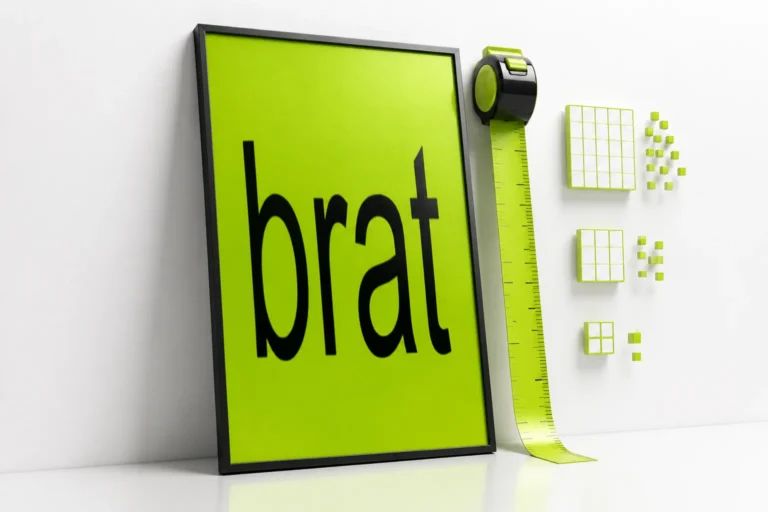
To make a brat album cover in Canva, create a square design, set the background to hex #8ACE00, add text in Arial Narrow, switch it to lowercase, and use the Spacing panel or the box resize handles to stretch it. Canva has no native blur slider for text, so the soft, distressed look of the real cover is the one part it can’t fully match – a dedicated brat generator applies that automatically.
Step-by-Step: Brat Album Cover in Canva
These steps work in both the desktop and browser versions of Canva:
- Start a new design. Choose “Custom size” and enter your dimensions (see the size section below) rather than picking a preset that isn’t quite right for where the cover is going.
- Fill the background. Click the canvas, open the background color picker, and enter the hex code directly rather than picking the closest green swatch.
- Add a text box. Type your word or short phrase – browse 100 brat words if you want ideas – switch the font to Arial Narrow, and set the case to lowercase.
- Adjust spacing and size. Open the Spacing panel to widen letter spacing, or drag the text box’s side handles to stretch it manually.
- Download your file. Use the Share menu, pick PNG, and choose your resolution – see the download section below for what’s free and what needs Canva Pro.
If you’d rather skip the manual setup entirely, the free brat generator on this site already has the correct green, the correct font, and the blur effect built in as defaults – useful to compare your Canva result against once you’re done.
Getting the Font and Color Right in Canva
Canva makes both of these easy to get technically correct, since neither requires a paid plan.
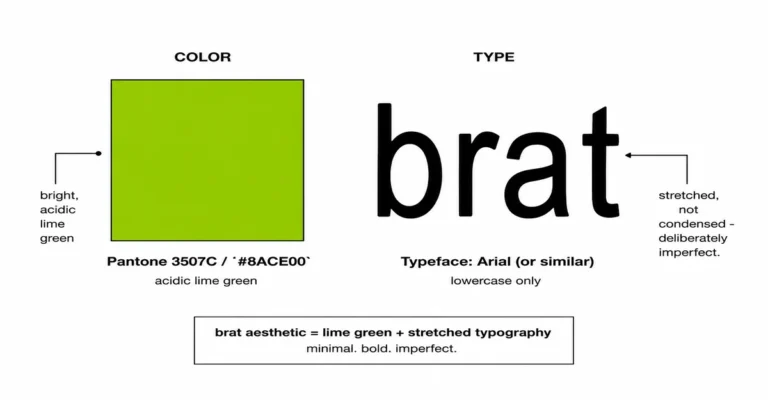
The color. Click the background, open the color picker, and type #8ACE00 into the hex field instead of clicking a preset “green” swatch – Canva’s default green swatches are a noticeably different, duller shade. For the full breakdown of this color across RGB, CMYK, and HSL, see the brat color code guide.
The font. Canva includes Arial Narrow in its free font library, so there’s no need for a workaround or a similar-looking substitute. Search “Arial Narrow” in the font picker, apply it to your text box, then set the text case to lowercase using the text options menu – the original cover uses lowercase throughout. Avoid Arial Black or a bold weight; those are wider, heavier typefaces that change the proportions of the result. For more on why the exact font matters, see the brat font generator guide.
Stretching the Text Without a Dedicated Slider
A purpose-built brat generator has a single letter-spacing or “stretch” slider. Canva doesn’t have one control that does exactly this, but two of its existing tools get close:
- The Spacing panel. With your text box selected, open the text properties panel and adjust letter spacing. Moving it slightly negative pulls letters tighter, which is closer to the condensed look of the original cover than the default spacing.
- Manual box resizing. Drag the left or right resize handle on the text box to stretch the whole line horizontally. This changes the proportions of the letters themselves, not just the space between them, which is closer to how the original album art actually looks – the font is stretched, not just spaced out.
Using both together – slightly tighter letter spacing plus a modest horizontal stretch of the box – gets closer to the real look than either one on its own. Stretch too far, though, and the letterforms start to look distorted rather than condensed, so make small adjustments and compare against a reference image as you go.
The Blur Effect Canva Can’t Fully Copy
This is the one place a general design tool falls short of a purpose-built brat generator. The real album cover has a soft, slightly out-of-focus quality to the text, and Canva’s core text tools don’t include a native blur slider the way a canvas-based generator does.
A few partial workarounds exist. Some Canva text-effect apps in the Canva Apps directory offer blur-style styling, but these are typically gated behind Canva Pro, and the result is closer to a drop-shadow or glow than the original’s genuine soft blur. Another workaround is exporting your Canva design as an image, then running that image through a separate free blur tool – which works, but adds a second tool and a second export step to what should be a one-step design choice.
If matching the exact distressed look matters more than staying inside one app, a dedicated brat generator applies blur, skew, and grain together from a single control, with the result visible instantly in the same preview – no extra export-and-reimport step. Canva is still a reasonable choice if you’re combining the cover with other design elements you’re already building in Canva anyway.
Setting the Right Canvas Size
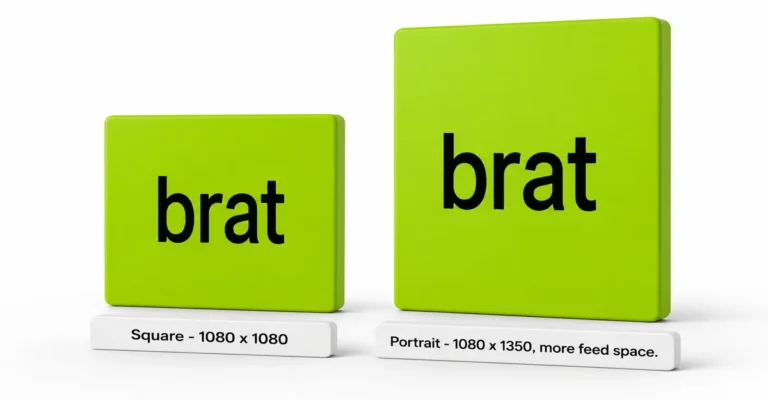
When you start a new Canva design, choose “Custom size” and enter dimensions that match where the cover is actually going, rather than using a generic square preset for everything:
| Use Case | Canvas Size to Enter |
|---|---|
| Instagram feed post | 1080 x 1080 px |
| Instagram Story / TikTok | 1080 x 1920 px |
| Profile picture | 500 x 500 px minimum |
| Print / physical merch | 3000 x 3000 px or higher, at 300 DPI |
If you’re building a full Instagram post rather than just a square cover, the brat Instagram post guide covers caption pairing and feed layout beyond just the image itself.
Downloading: Free vs Canva Pro
This is the part of the Canva workflow most people get caught out by, since Canva’s free and paid download options aren’t identical.
What’s free: Standard PNG or JPG download at your design’s set resolution, with the background color you chose filled in solid.
What needs Canva Pro: Downloading with a transparent background – so the green (or any color) becomes see-through instead of solid – is a Canva Pro-only feature. A free Canva account can’t check that box on export; the design downloads with the background filled in regardless.
This matters specifically if you want a transparent brat-style cover for stickers or overlays. A dedicated brat generator with native transparent PNG export handles this for free, since transparency is a built-in export option rather than a paid add-on. See the transparent background guide if that’s specifically what you need.
Using the Canva Mobile App
The same steps work in the Canva mobile app, with the interface laid out a little differently:
- Tap “Create a design” and choose a custom size the same way as desktop.
- Set the background by tapping the canvas, then entering the hex code in the color picker.
- Add and style text using the text tool – font, case, and spacing options are in the same menus, just laid out for touch.
- Stretch the text box by dragging its corner or side handles with your finger instead of a cursor.
- Download from the share icon, same free-vs-Pro rules apply for transparent backgrounds on mobile as on desktop.
Canva Free vs Canva Pro vs a Brat Generator
Which one makes sense depends on whether you’re making a single quick cover or building it into a bigger design project. See what a brat generator actually is if you’re deciding between the two approaches for the first time.
| Canva Free | Canva Pro | Dedicated Brat Generator | |
|---|---|---|---|
| Correct font (Arial Narrow) | Yes | Yes | Yes, built in by default |
| Correct green as a preset | No – enter hex manually | No – enter hex manually | Yes, default background |
| Blur/distress effect | Not available | Limited, via separate apps | Yes, single slider |
| Transparent PNG export | No | Yes | Yes, free |
| Cost | Free | US$180/year for one person (per Canva’s own pricing page) | Free |
| Best for | Combining with other design work you already do in Canva | Same, plus transparent exports | A fast, exact-match single cover |
Common Mistakes
Mistake: Picking Canva’s closest green swatch instead of typing the hex code.
Canva’s default green presets are a different, duller shade than #8ACE00. Always enter the hex value directly in the color picker.
Mistake: Using Arial Black or a bold weight instead of Arial Narrow.
These are wider, heavier typefaces. Even with the right color and spacing, a bold font changes the proportions enough to look like a different style entirely.
Mistake: Expecting the free plan to export a transparent background.
Free Canva accounts always export with the background filled in. If you need transparency without upgrading, use a generator with native transparent export instead.
Mistake: Over-stretching the text box until letters distort.
A little horizontal stretch reads as the condensed original look; too much starts to look warped rather than intentional. Make small adjustments and compare to a reference image.
FAQ
Can I make a brat album cover in Canva for free?
Yes. The correct font, color, and canvas size are all available on Canva’s free plan. The one limitation is exporting with a transparent background, which requires Canva Pro.
Does Canva have the exact brat green as a preset?
No. Type the hex code #8ACE00 directly into the color picker rather than choosing one of Canva’s default green swatches, which are a different shade.
Does Canva have Arial Narrow?
Yes, Arial Narrow is available in Canva’s free font library – no workaround or substitute font is needed.
How do I get the blurry text look in Canva?
Canva’s core text tools don’t include a native blur slider. Some Canva apps offer blur-style effects, usually gated behind Canva Pro, but the result is closer to a shadow or glow than the original’s soft blur.
Can I download a transparent PNG from Canva for free?
No. Transparent background export is a Canva Pro feature. A free account will always export the background filled in as a solid color.
What canvas size should I use in Canva?
1080 x 1080 pixels for a square social post, 1080 x 1920 for Instagram Stories or TikTok, and 3000 x 3000 pixels or higher for print.
How do I stretch text in Canva?
Adjust letter spacing in the text Spacing panel, or drag a text box’s side resize handle to stretch the letters themselves rather than just the space between them.
Is Canva or a dedicated brat generator faster?
A dedicated brat generator is faster for a single cover, since the correct color, font, and blur are already set as defaults. Canva makes more sense if the cover is part of a larger design you’re already building there.
Does the Canva mobile app work the same way?
Yes. The same font, color, and spacing tools are available on mobile, just laid out for touch, and the same free-vs-Pro rules apply to transparent exports.
Can I use my Canva cover commercially?
Recreating the visual style with your own text and a standard Canva design is different from copying official album artwork. Check Canva’s own license terms for any stock elements you add beyond your own text and color choices.